
On this page
Quick answer: install the free Downloader app from the Amazon Appstore, allow it under Settings > My Fire TV > Developer options > Install unknown apps, open Downloader and type the code 78522 to install IPTV Smarters Pro. Then choose Login with Xtream Codes API and enter your username, password and server URL.
What you need
- A Firestick, Fire TV Stick 4K / 4K Max, Fire TV Cube or Fire TV smart TV, connected to the internet.
- Your TrendyScreen login: username, password and server URL. No subscription yet? Get a free trial.
- About 15 minutes.
Which IPTV app to use on Firestick
This guide uses IPTV Smarters Pro because it is free, simple and shows live TV, movies, series and the TV guide in one place. If you prefer another player, the steps are the same — only the Downloader code changes:
| App | Price | Downloader code |
|---|---|---|
| IPTV Smarters Pro | Free | 78522 |
| XCIPTV | Free | 114407 |
| TiviMate | Free for live TV, Premium for VOD | 185194 |
| HOT IPTV | Paid after trial | 395800 |
| IBO Player Pro | Paid after trial | From the official website |
Not sure which one suits you? Our IPTV apps comparison explains the differences.
Part 1: Install the Downloader app
Downloader is a free app from the Amazon Appstore that downloads other apps by a short code.
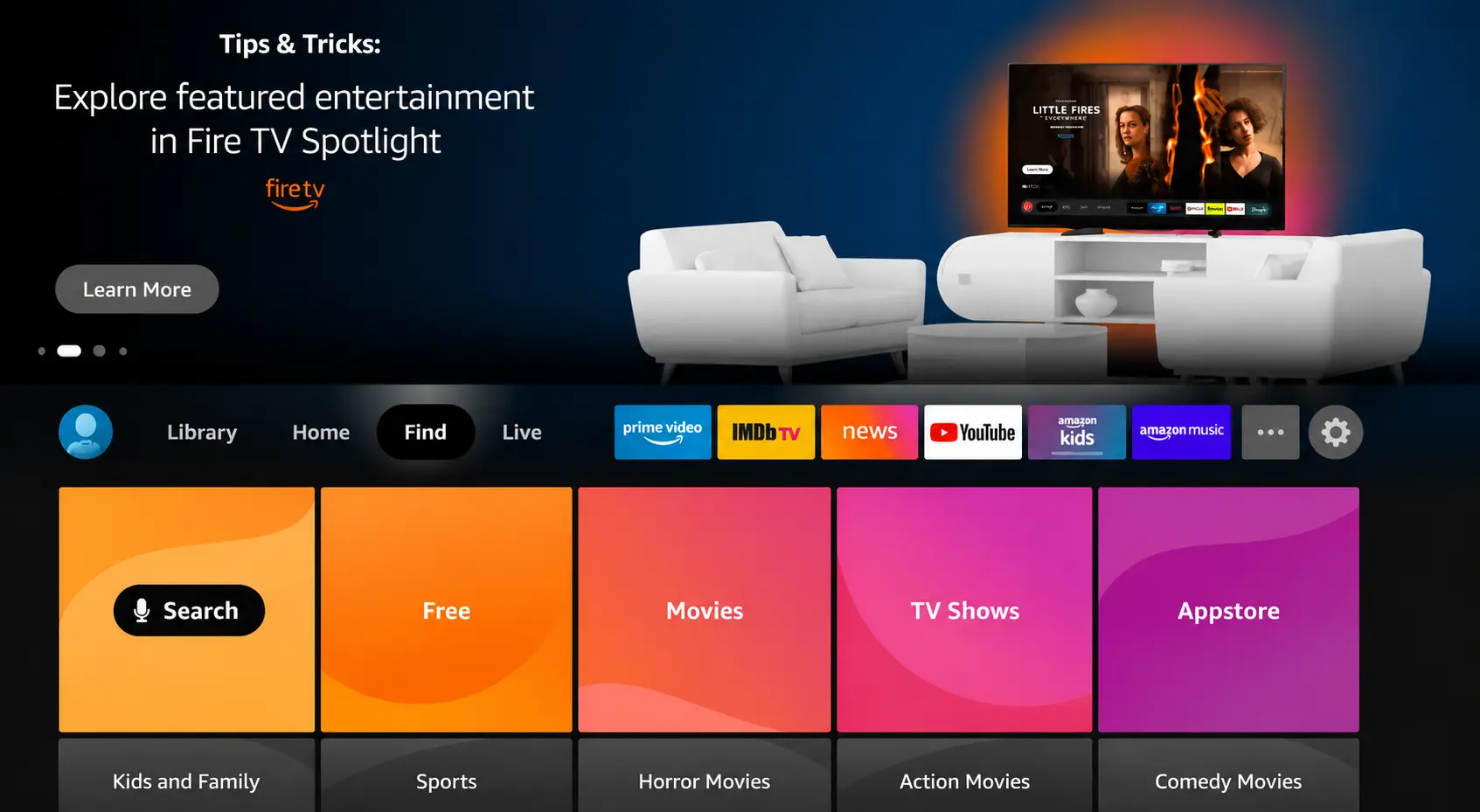
Open Search on the Fire TV home screen
Press the Home button, move to Find and select Search.
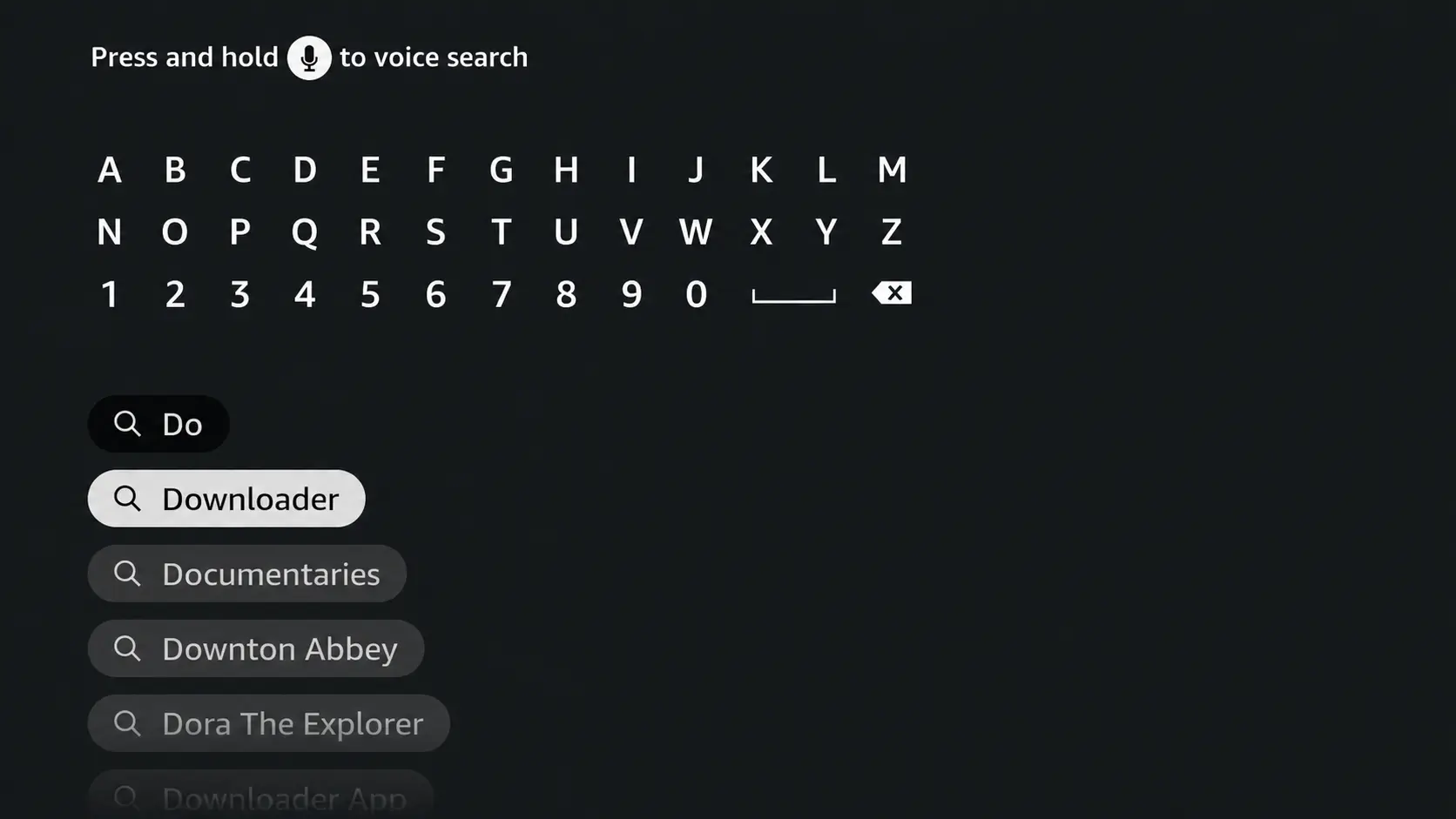
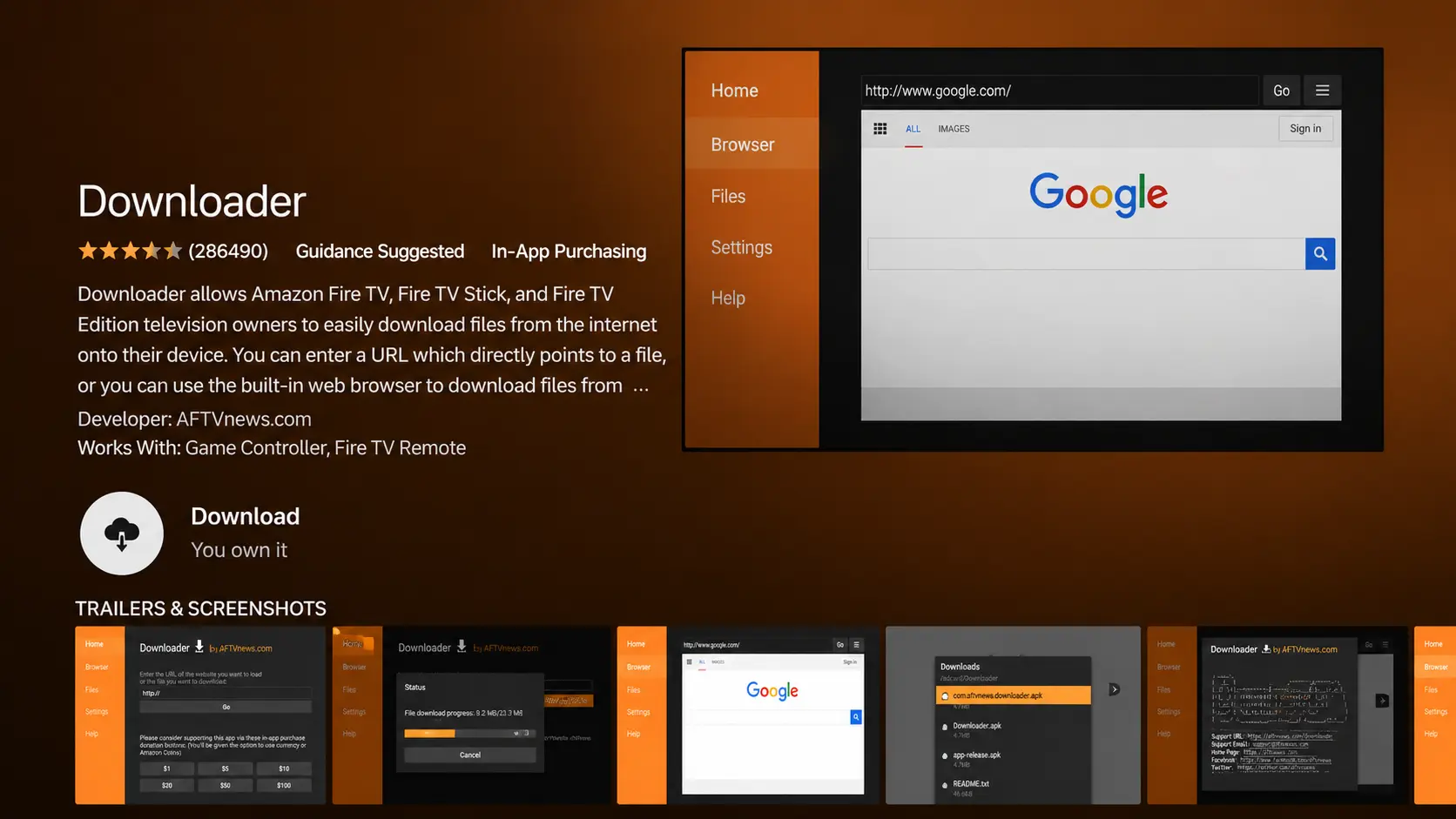
Search for “Downloader”
Type Downloader and pick it from the suggestions.
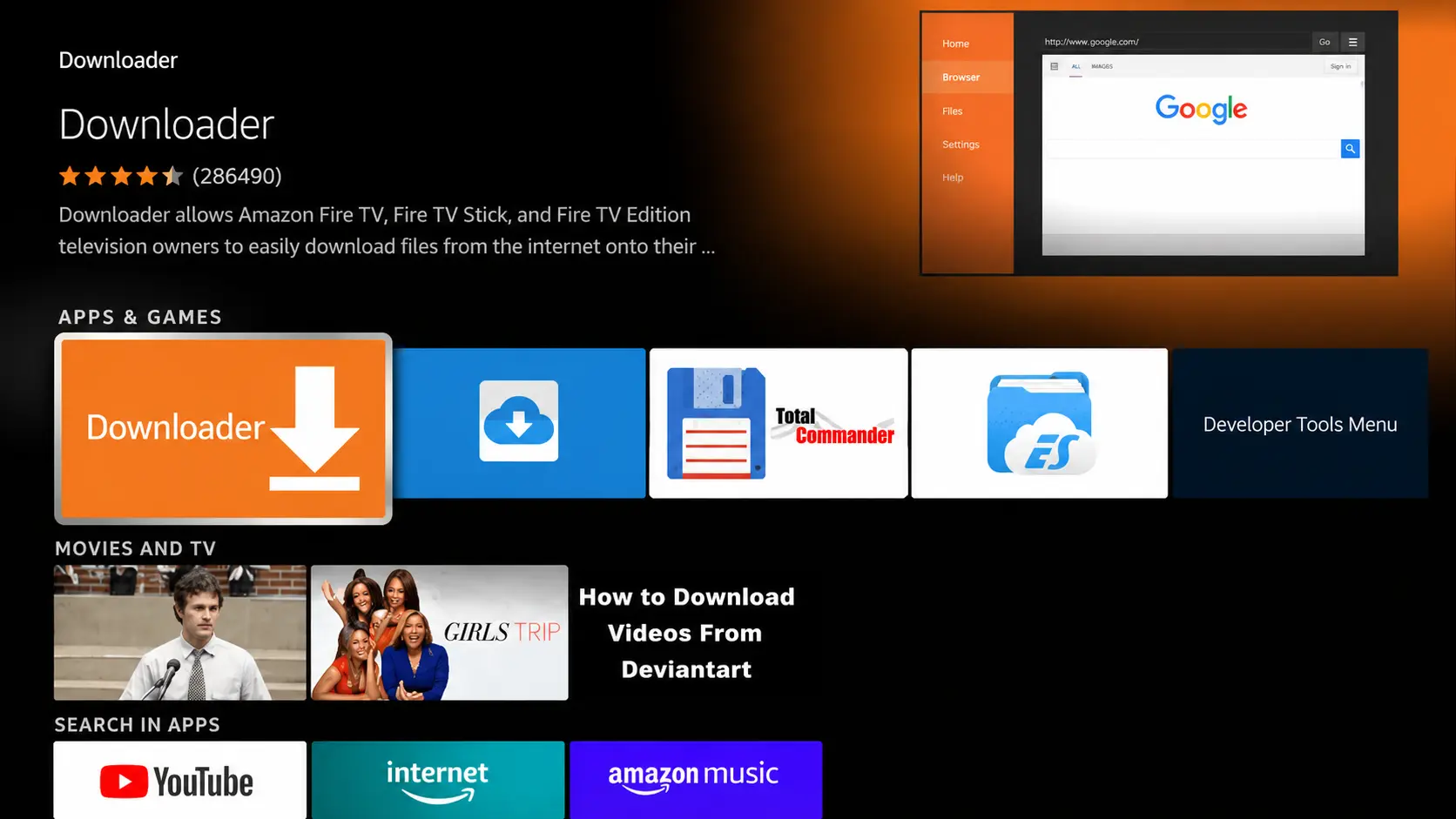
Select the Downloader app
Choose the orange Downloader app by AFTVnews.
Download it
Select Download (or Get). It is free.
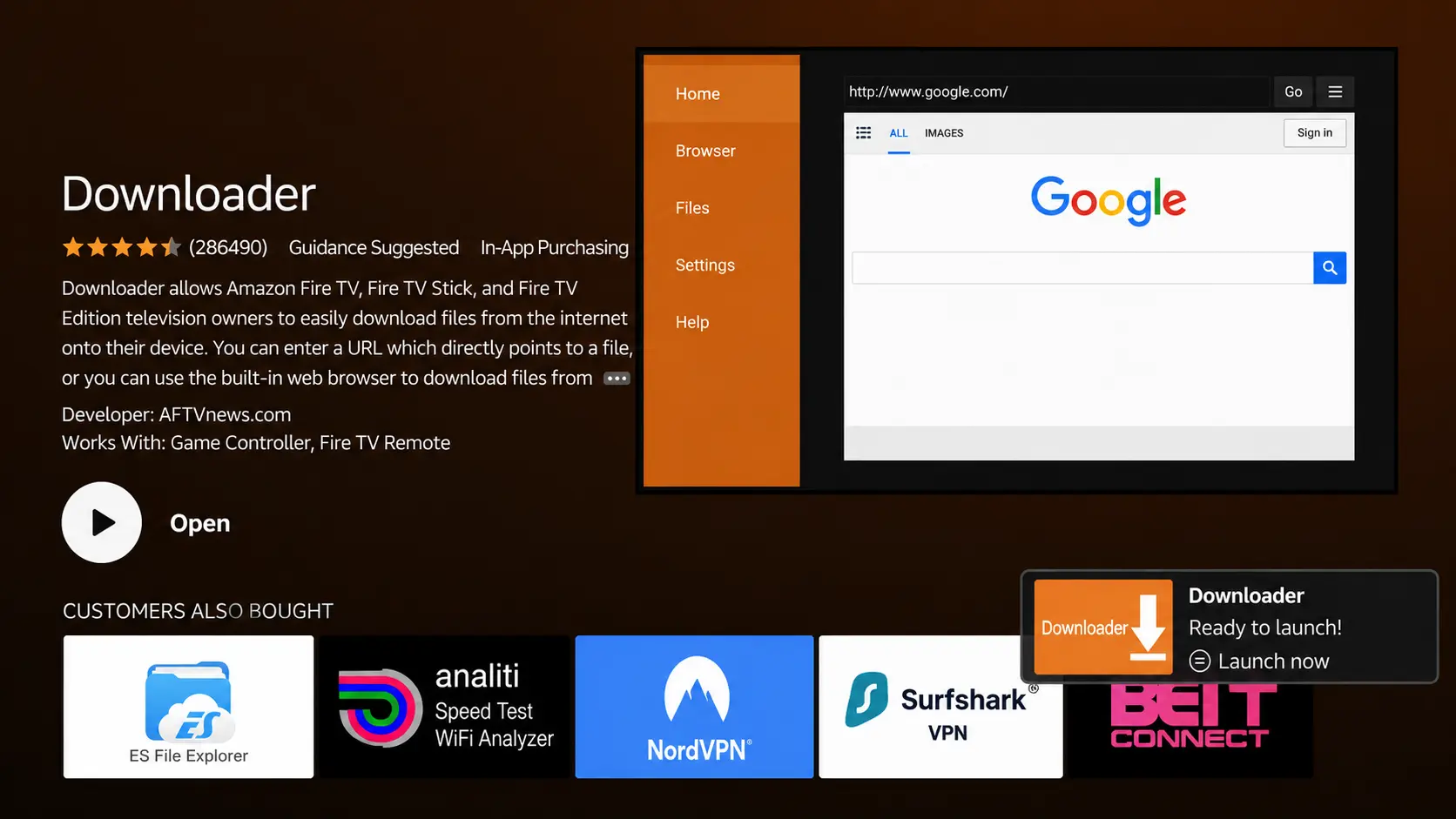
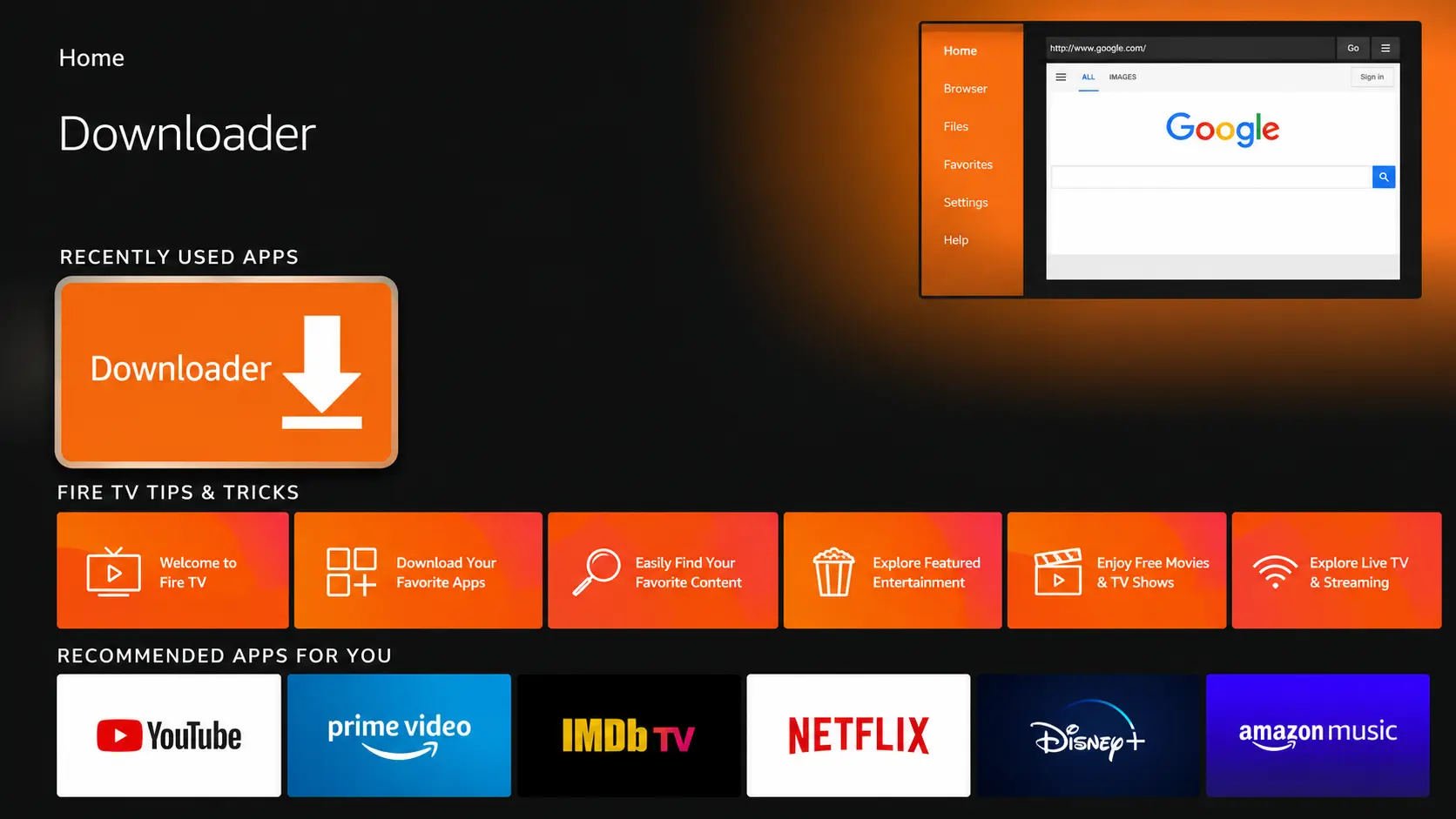
Open Downloader once it is installed
Select Open to check it launches, then go back to the home screen.
Part 2: Allow Downloader to install apps
Fire TV only installs apps from the Amazon Appstore until you allow a specific app to install others. You only do this once.
Open Settings
From the home screen, open the gear icon (Settings).
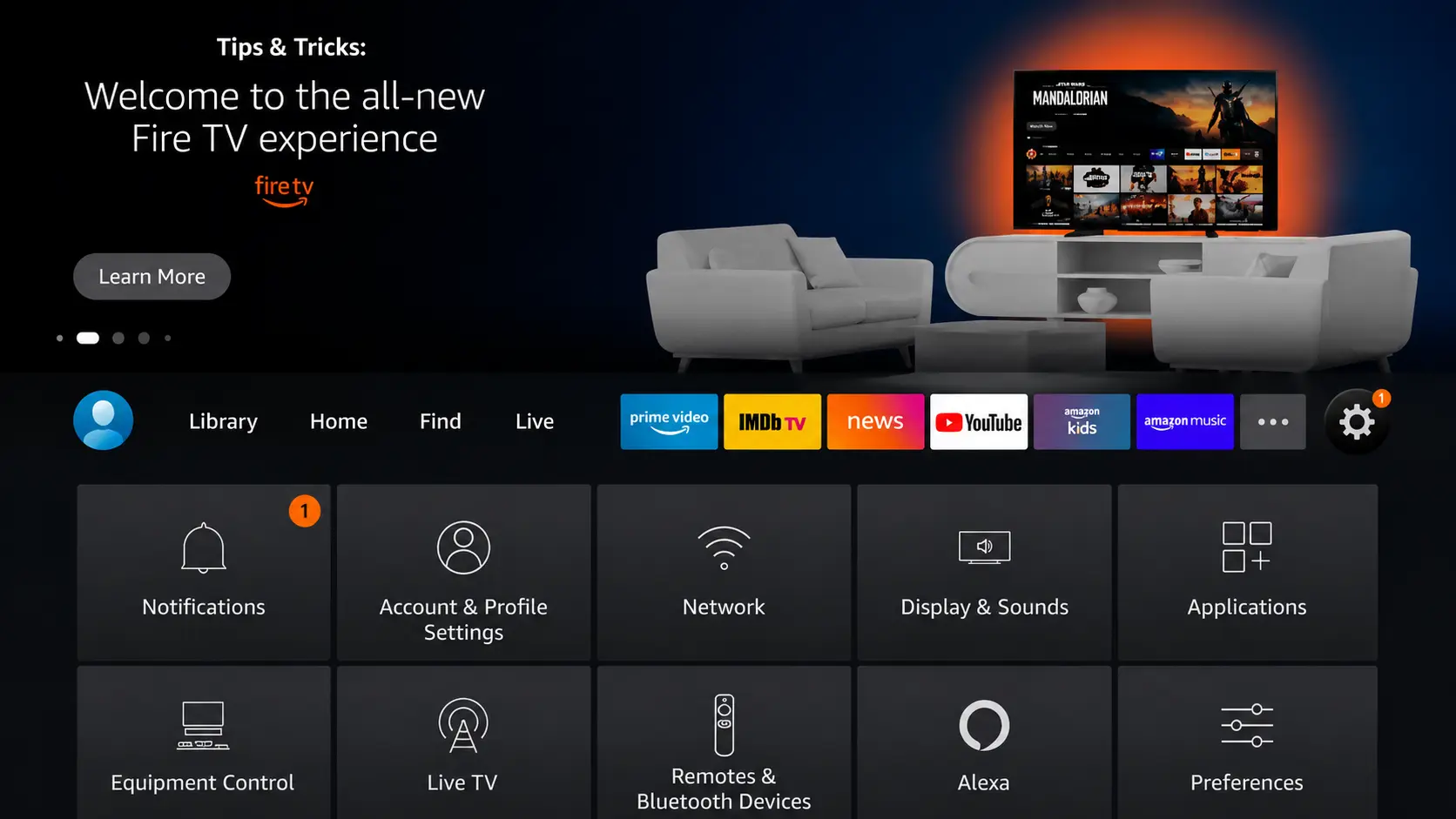
Select “My Fire TV”
On some models it is called Device & Software.
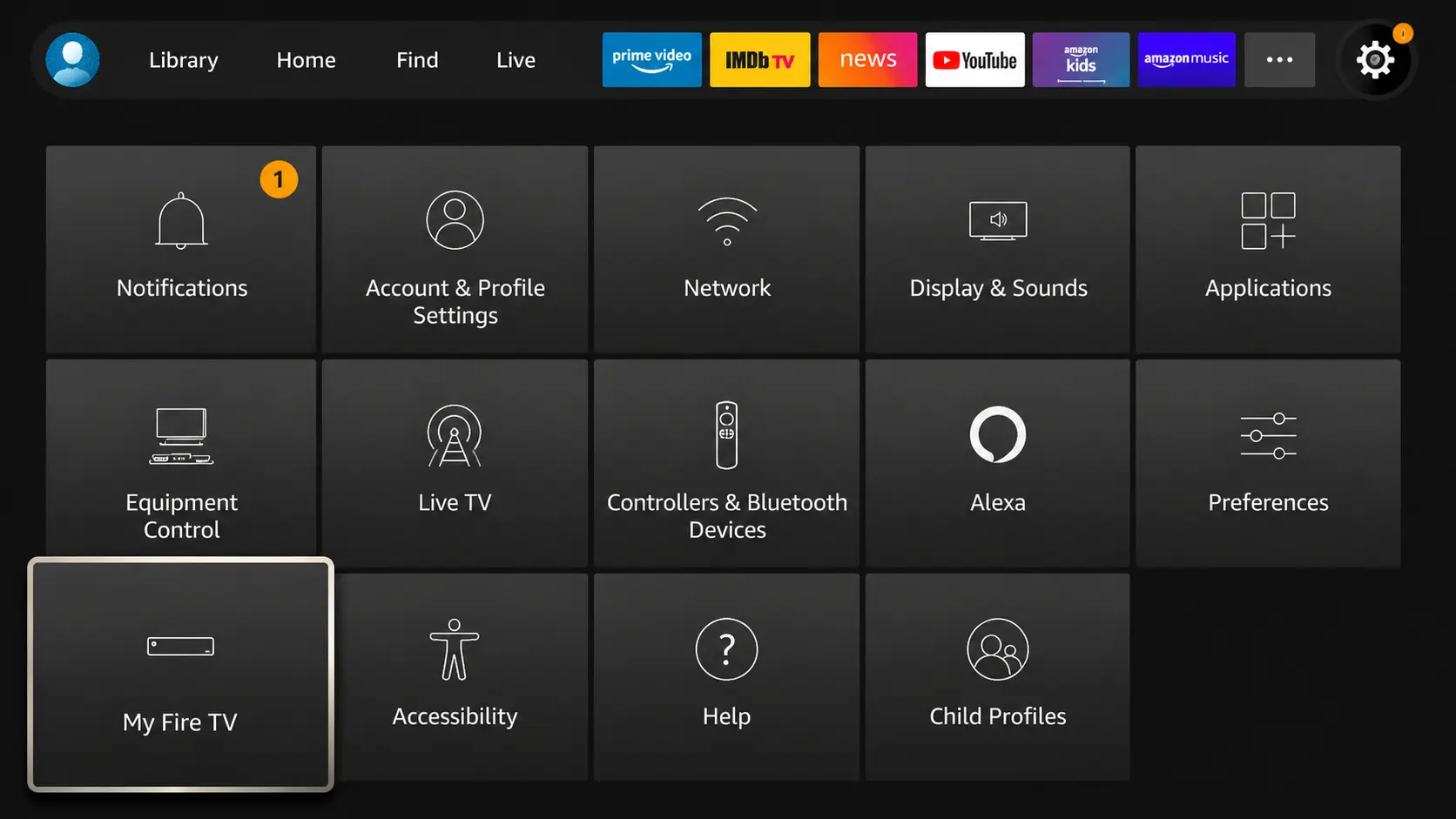
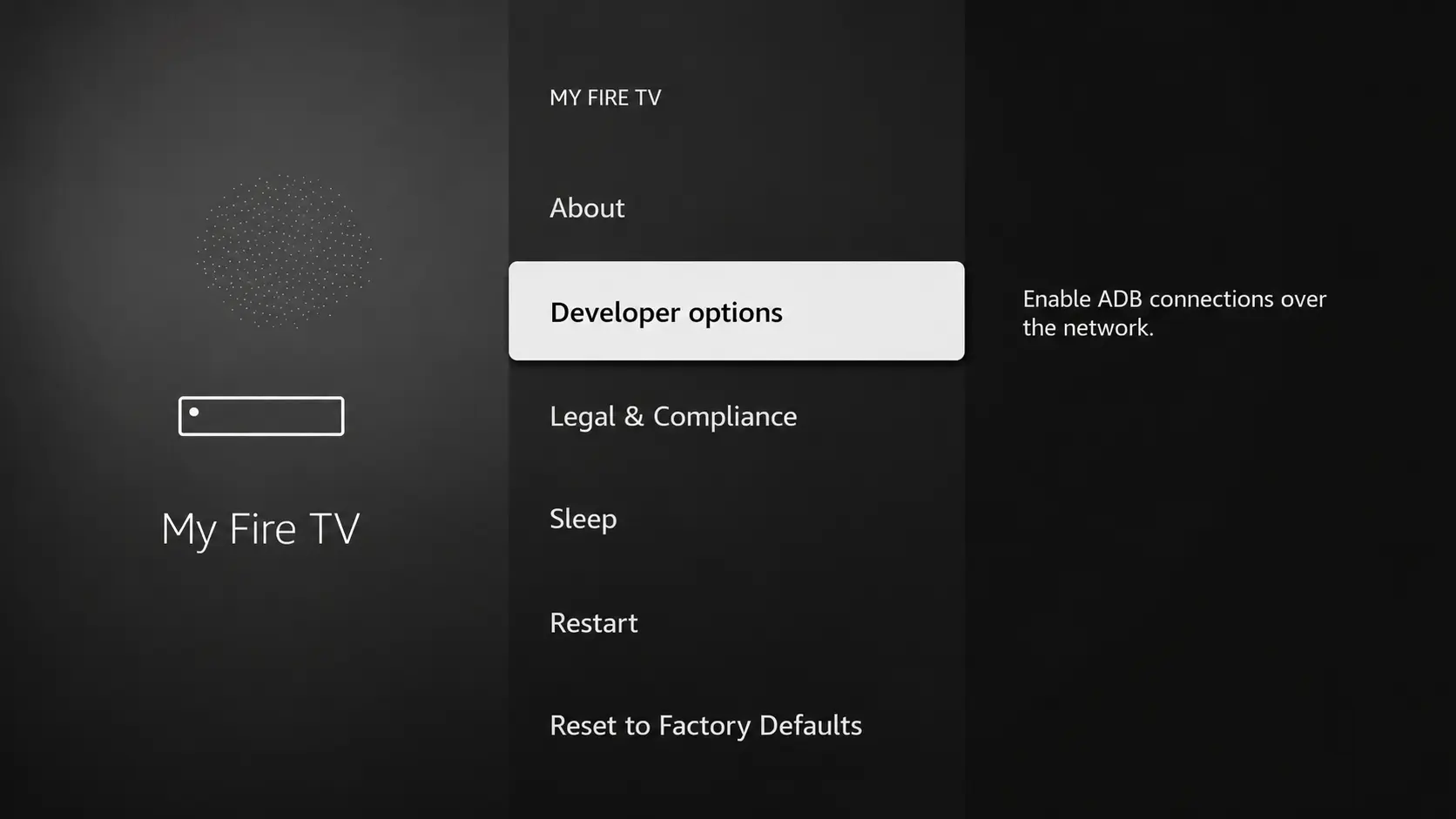
Open “Developer options”
If you do not see it, open About, select your device name 7 times until “You are now a developer” appears, then go back.
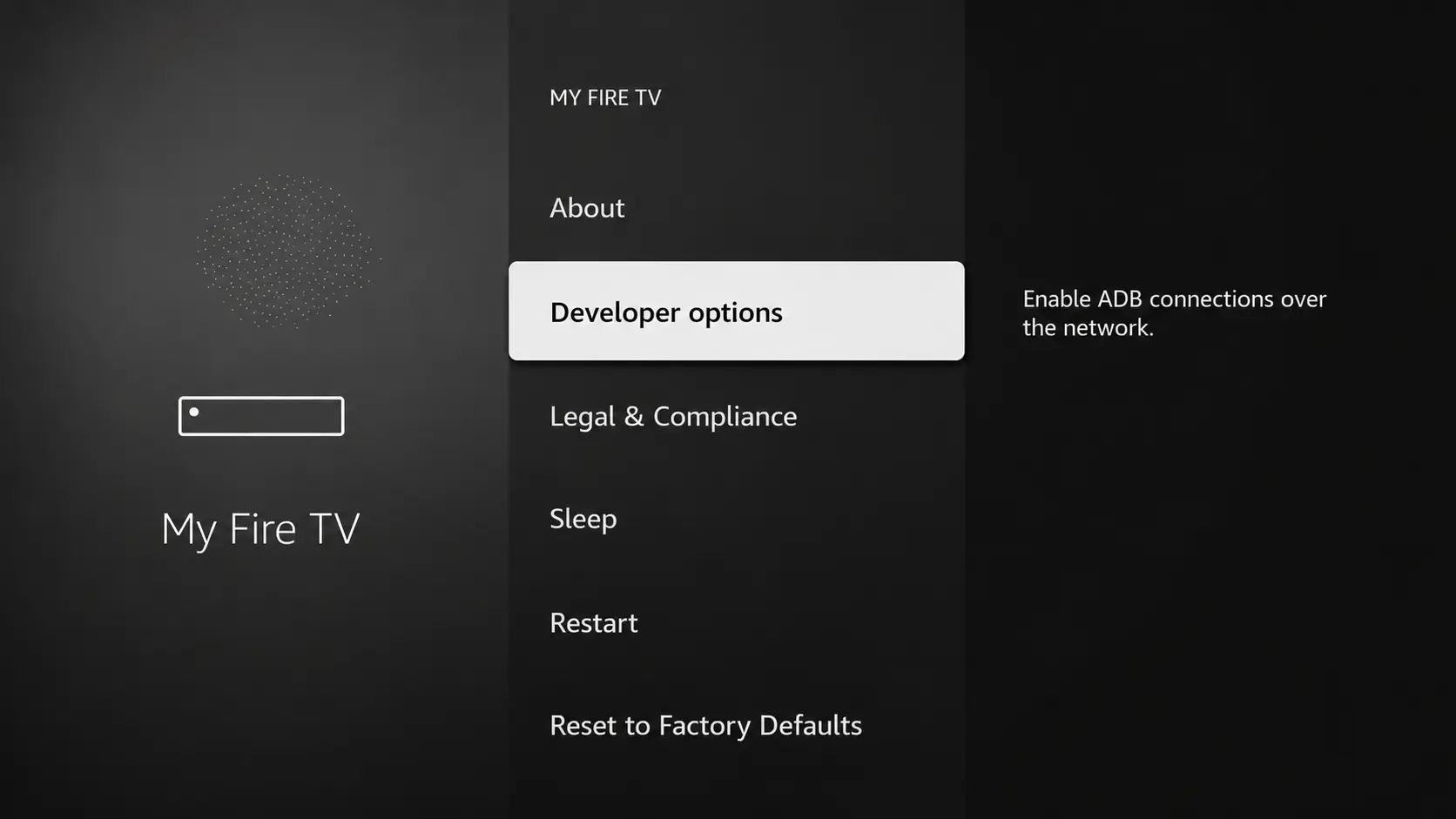
Select “Install unknown apps”
This controls which apps may install other apps.
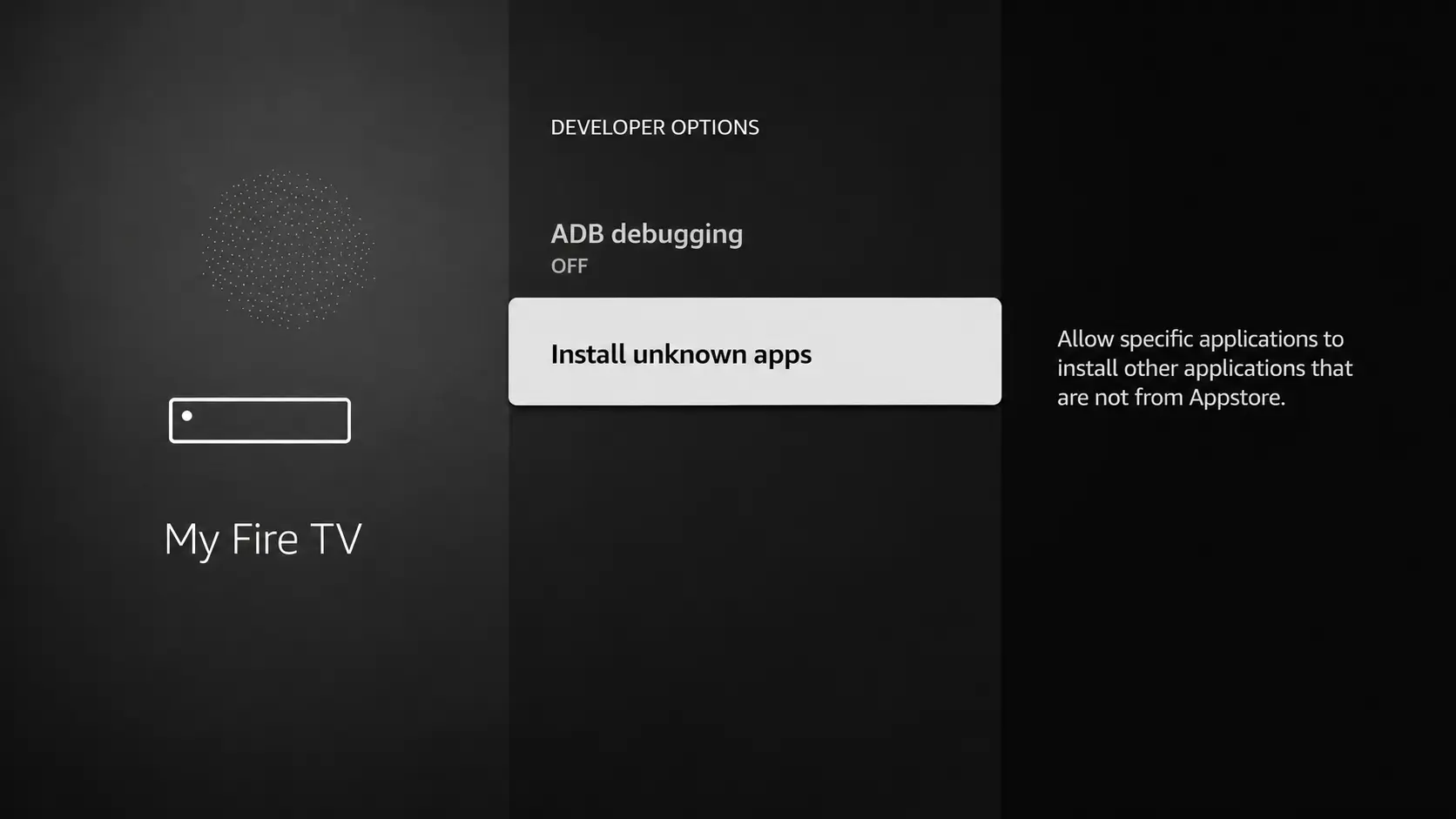
Find Downloader in the list
Select Downloader.
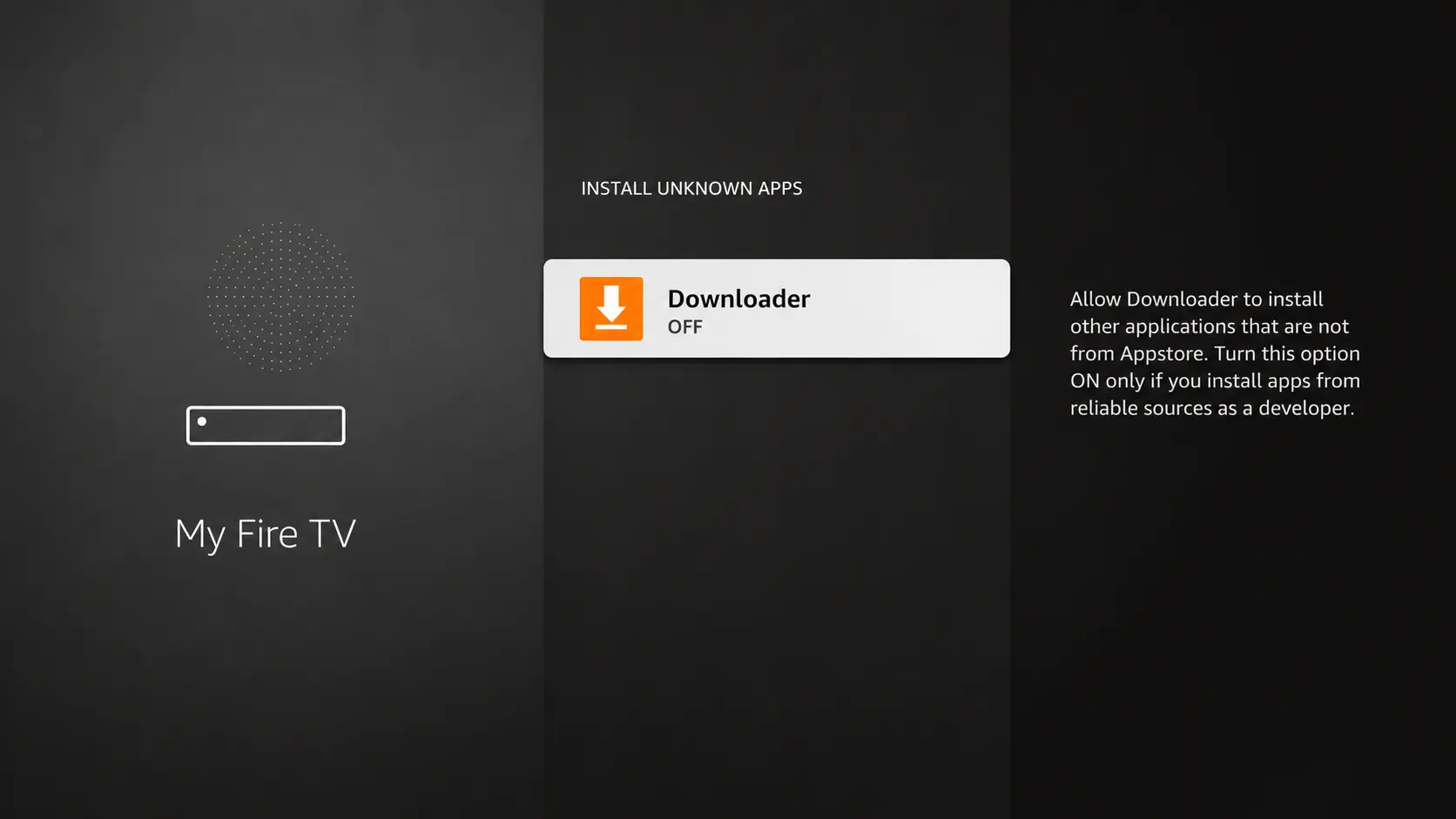
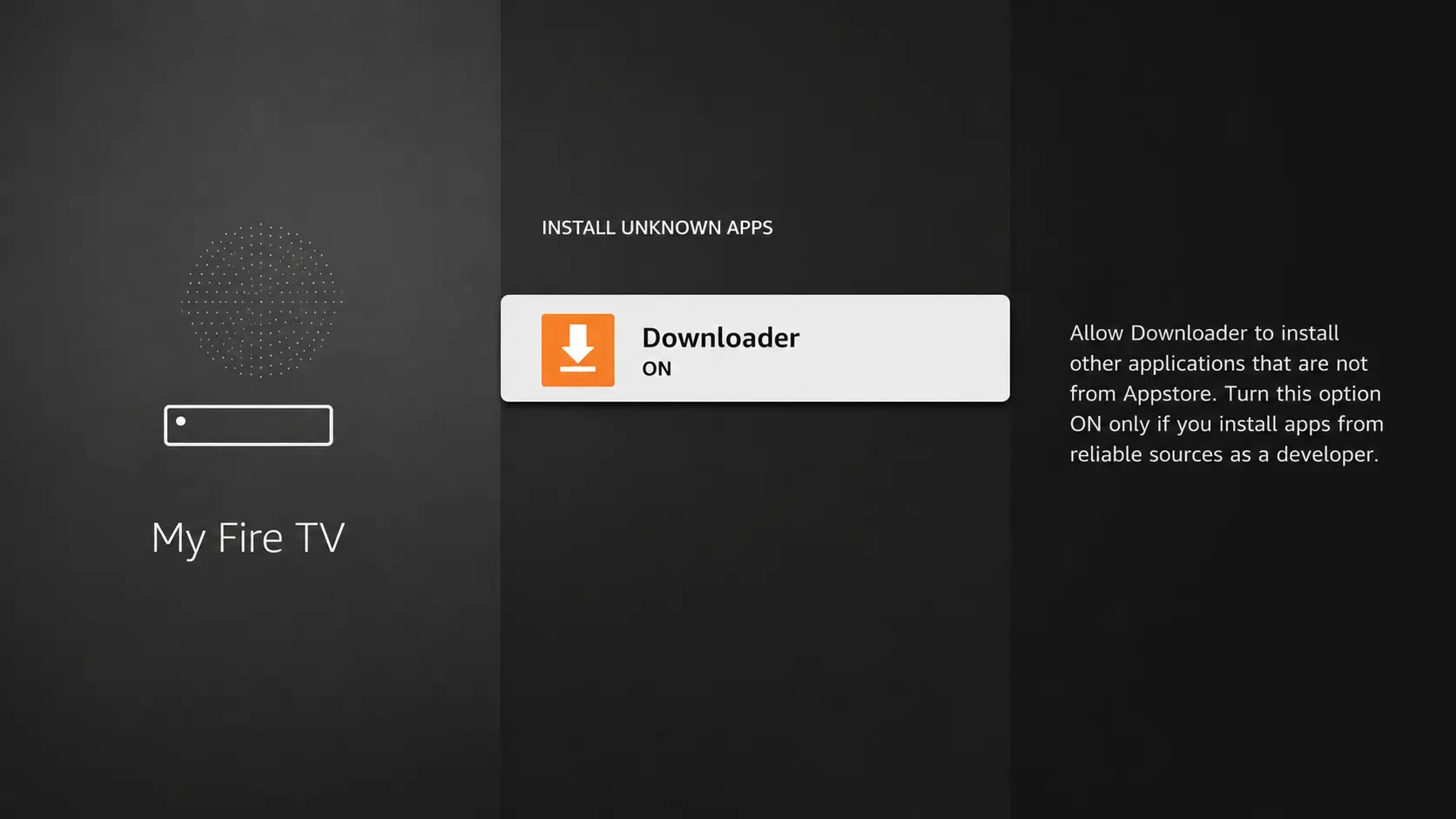
Turn Downloader ON
It should now read ON. This only allows Downloader to install apps — nothing else changes.
Part 3: Install IPTV Smarters Pro with code 78522
Launch Downloader
Open Downloader from your apps.
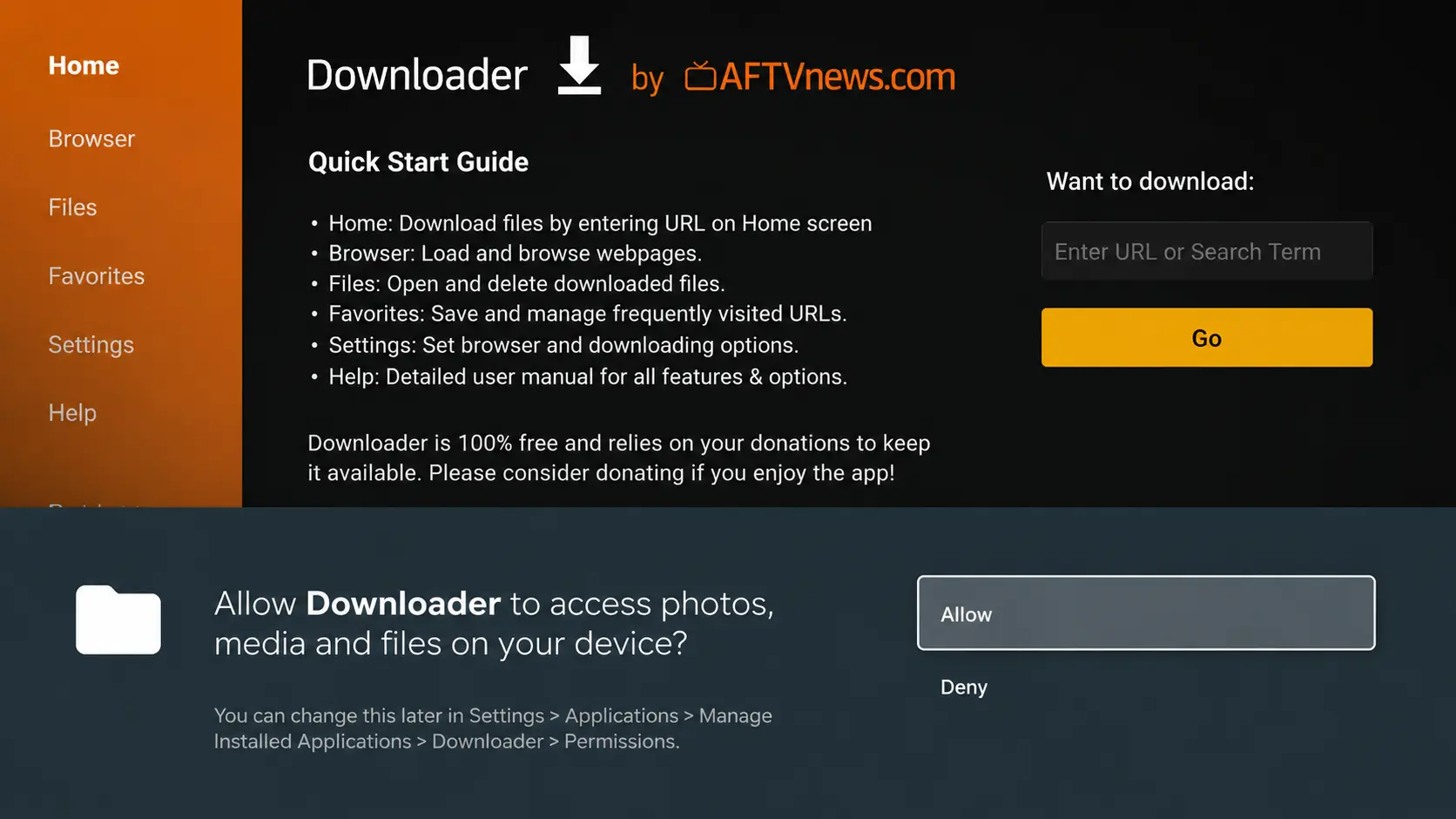
Allow access
Select Allow when Downloader asks for access to files.
Close the tips
Select OK on the quick start note.
Type the code 78522 and select Go
In the URL box, type the Downloader code for IPTV Smarters Pro and select Go.
IPTV Smarters Pro — Downloader code78522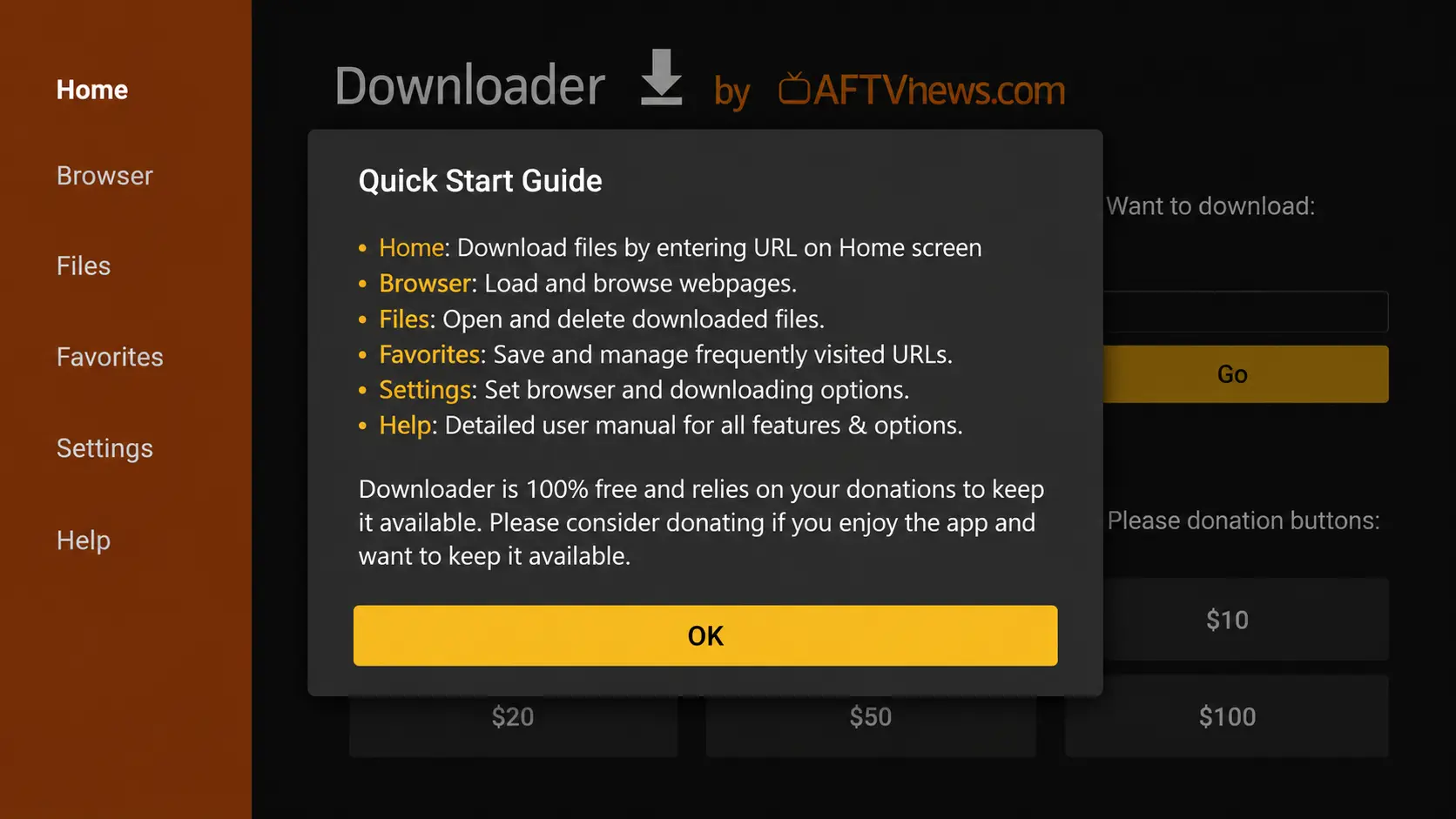
Wait for the download
The installer downloads; it takes a few seconds.
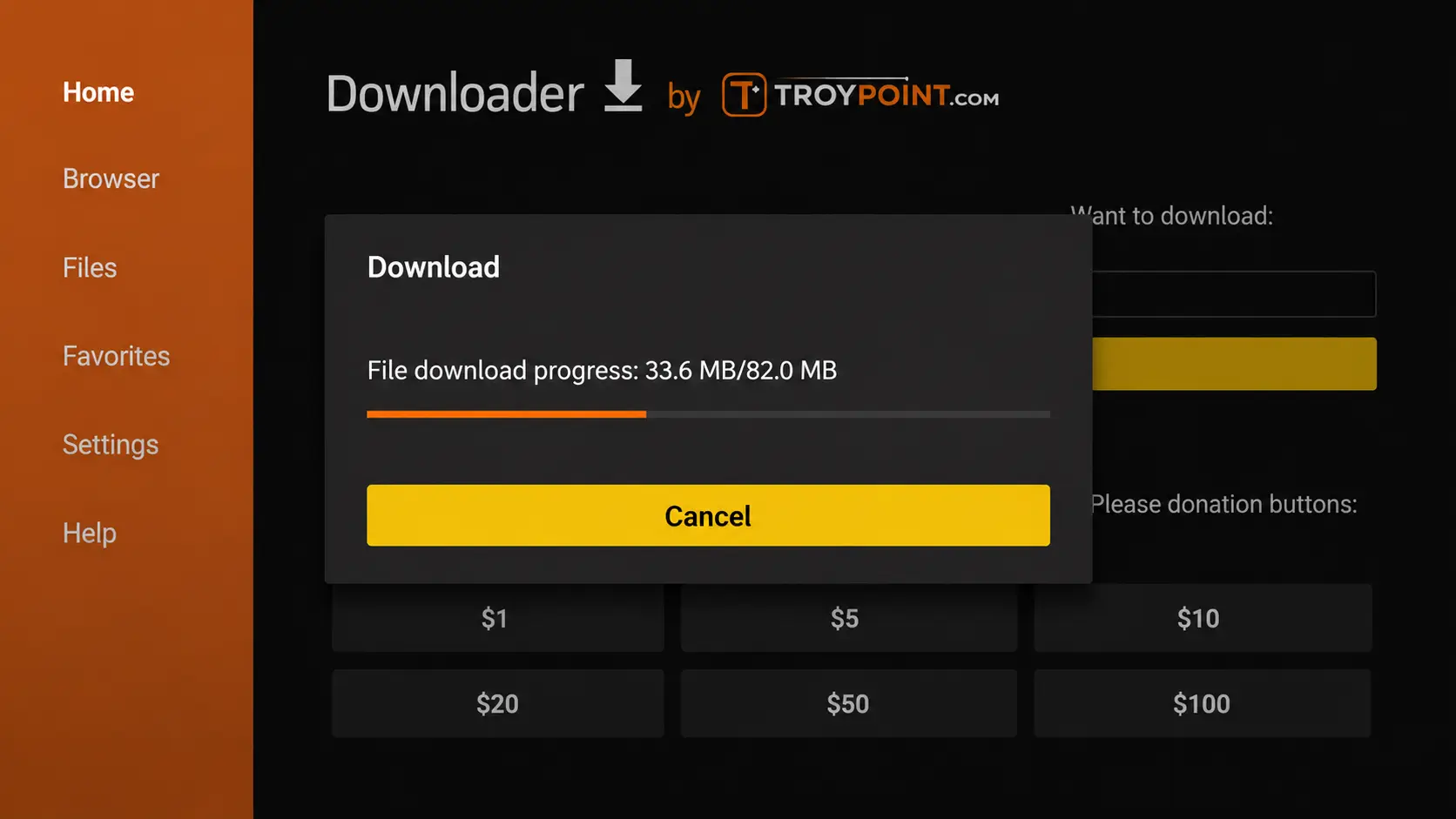
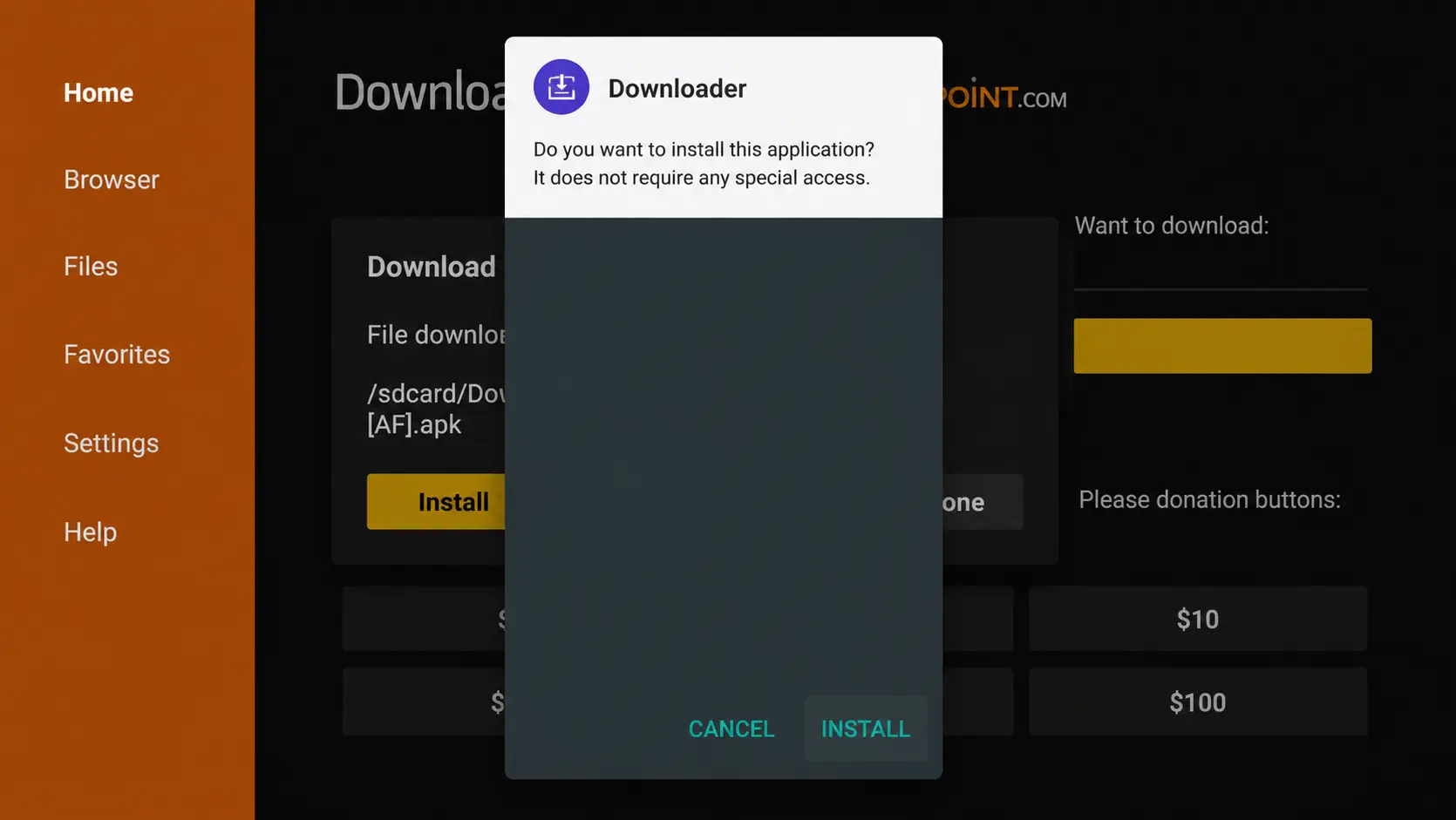
Select Install
Confirm the installation of IPTV Smarters Pro.
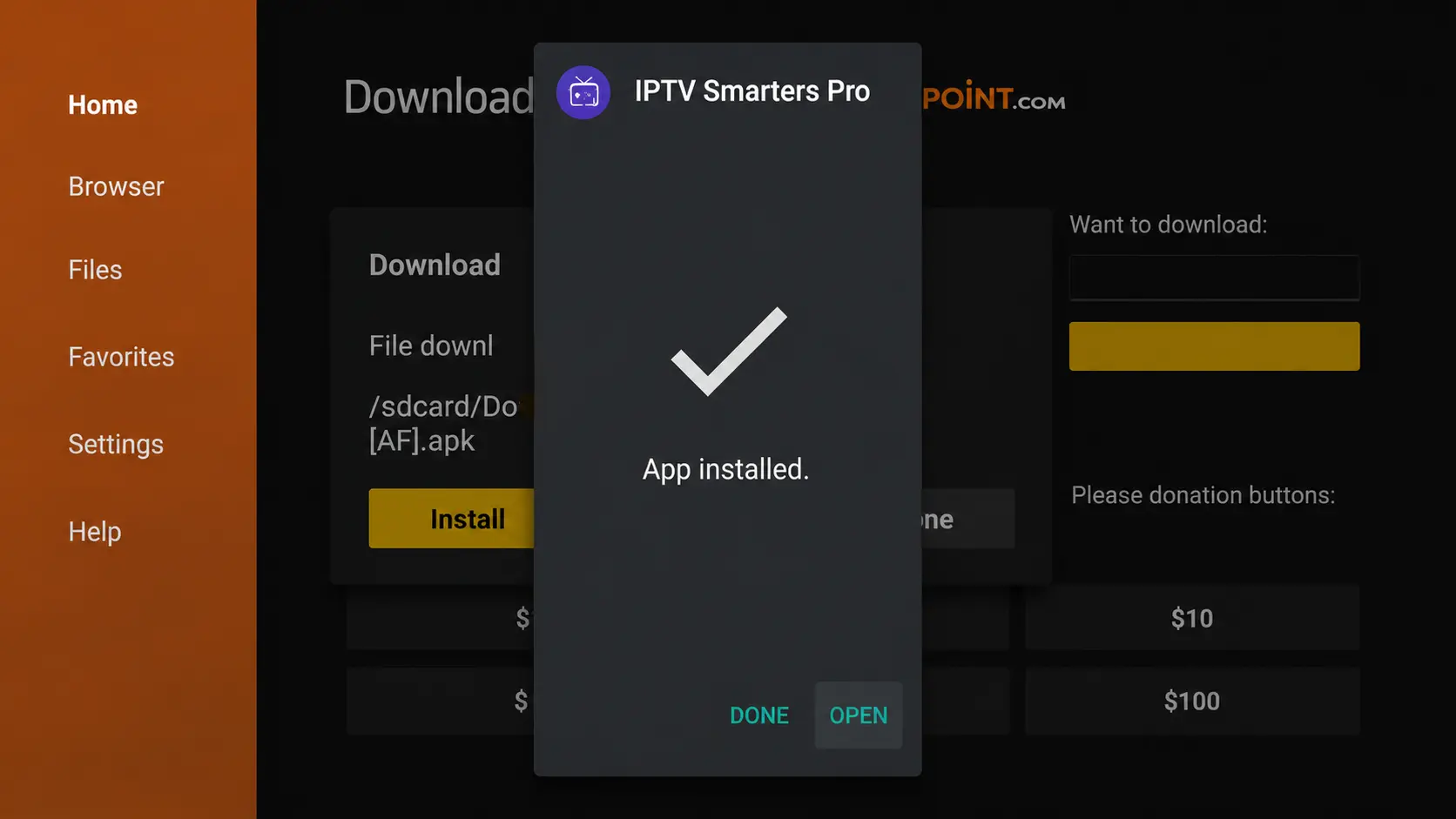
Select Done
Choose Done. Downloader then offers to delete the installer file — select Delete twice to free up storage.
Part 4: Log in with your TrendyScreen details
Open IPTV Smarters Pro and choose “Login with Xtream Codes API”
Accept the terms, then pick the Xtream Codes login.
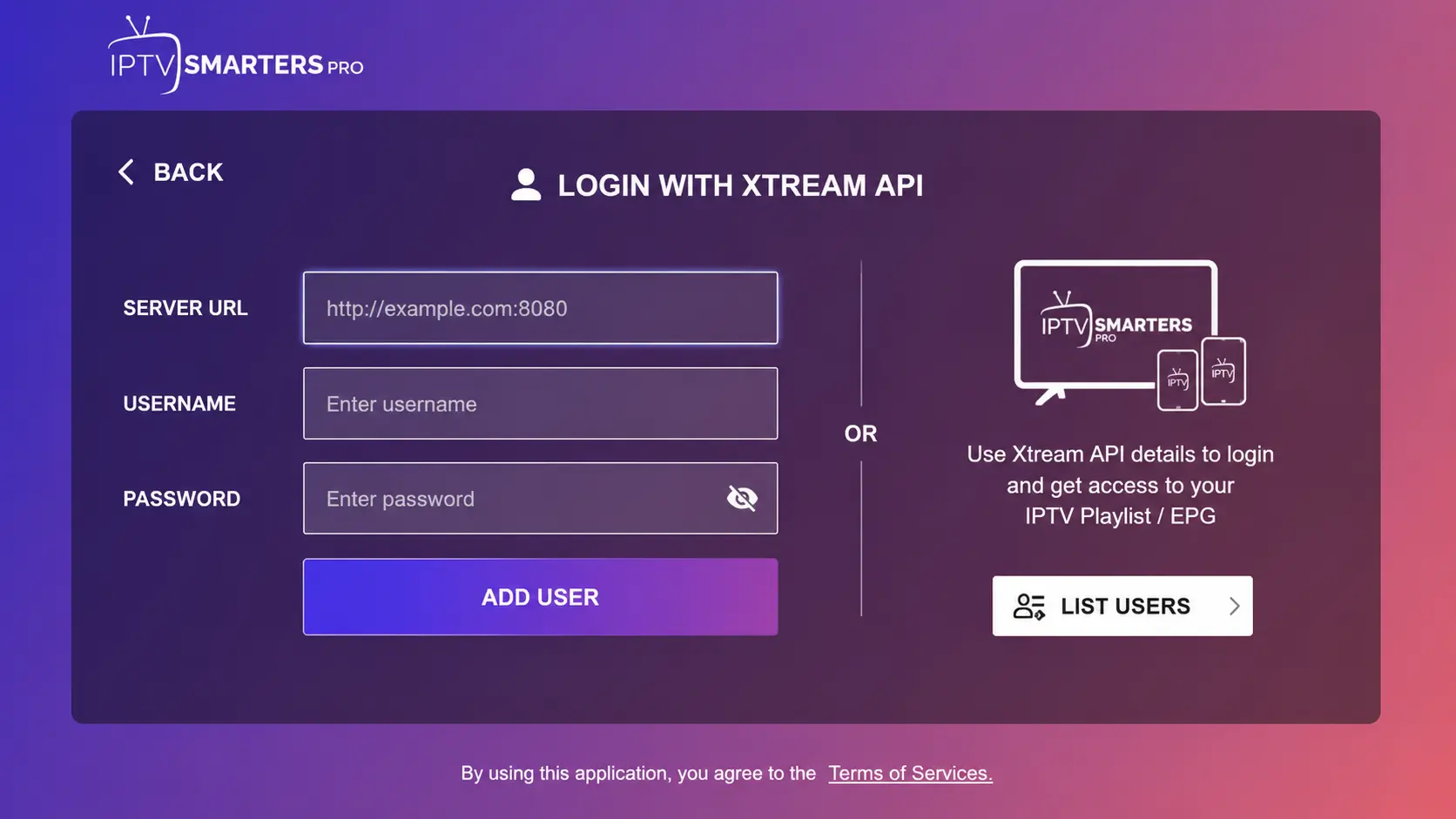
Enter your TrendyScreen login
- Any name: anything, for example “TrendyScreen”.
- Username and Password: from your activation message.
- URL: your server URL, starting with
http://and ending with the port number.
Select Add user. Your channels, movies and series load in a minute or two.
The most common mistake
Use exactly the server URL from your activation message, including http:// and the port (for example :8080). The first box is only a profile name — it can be anything.
Prefer a video?
This video shows the whole process. When it reaches the Downloader part, use the codes from this page.
Tips for smooth IPTV on Firestick
- Use a wired connection if you can. An Amazon Ethernet adapter removes most buffering caused by Wi-Fi.
- Keep storage free. Delete installer files and apps you do not use; a full Firestick slows down.
- Restart the Firestick once a week. Settings > My Fire TV > Restart clears the memory.
- Pick the right stream quality. If a 4K channel stutters, try its FHD or HD version.
Troubleshooting
“Failed to Authorize” or “Invalid login”
Retype the username and password (they are case-sensitive), check the server URL and port, turn off any VPN and make sure your plan is active. Step-by-step fixes: IPTV Smarters Failed to Authorize.
Downloader says the code is not found
Check you typed the code in Downloader’s URL box, not in the Fire TV search. If it still fails, message us and we send you a direct link.
Channels buffer or freeze
Test your speed, move to Ethernet and clear the Smarters cache. See how to fix IPTV buffering.
Firestick IPTV questions
What is the Downloader code for IPTV Smarters Pro?
The Downloader code for IPTV Smarters Pro is 78522. Type it in the URL box of the Downloader app and select Go.
Is IPTV Smarters Pro in the Amazon Appstore?
Usually not, which is why this guide installs it with the Downloader app. Downloader itself is in the Amazon Appstore and is safe to use.
I cannot find “Developer options”. Where is it?
On newer Fire OS versions it is hidden. Go to Settings > My Fire TV > About, select your device name 7 times, then go back — Developer options now appears.
Can I use TiviMate on Firestick?
Yes. In Downloader, use the code 185194. TiviMate plays live TV for free; you need TiviMate Premium for movies and series. It is one of the best apps for large channel lists.
Which Firestick is best for IPTV?
A Fire TV Stick 4K or 4K Max. They have more memory and faster Wi-Fi than the basic Lite model, which makes a big difference with 20,000 channels and 4K streams. See the best streaming devices for IPTV.
Smarters says “Failed to Authorize”. What now?
Check the username, password and server URL character by character, make sure the URL starts with http:// and includes the port, and turn off any VPN. The full list is in our Failed to Authorize guide.