
On this page
Quick answer: install TiviMate IPTV Player (Google Play on Android TV; Downloader on Firestick), select Add playlist > Xtream Codes, enter your server address, username and password, then hide the channel groups you do not watch. Premium is optional but adds multiple playlists, catch-up and recording.
Why people love TiviMate
- A real TV guide: a grid that looks like cable, with channel logos and now/next on every row.
- Speed: it opens large lists of 20,000 channels quickly, even on a Fire TV Stick 4K.
- Remote-friendly: everything is designed for a TV remote, not a touchscreen.
- Premium features: catch-up, recording to a USB drive, custom groups and favourites.
Set up TiviMate with TrendyScreen
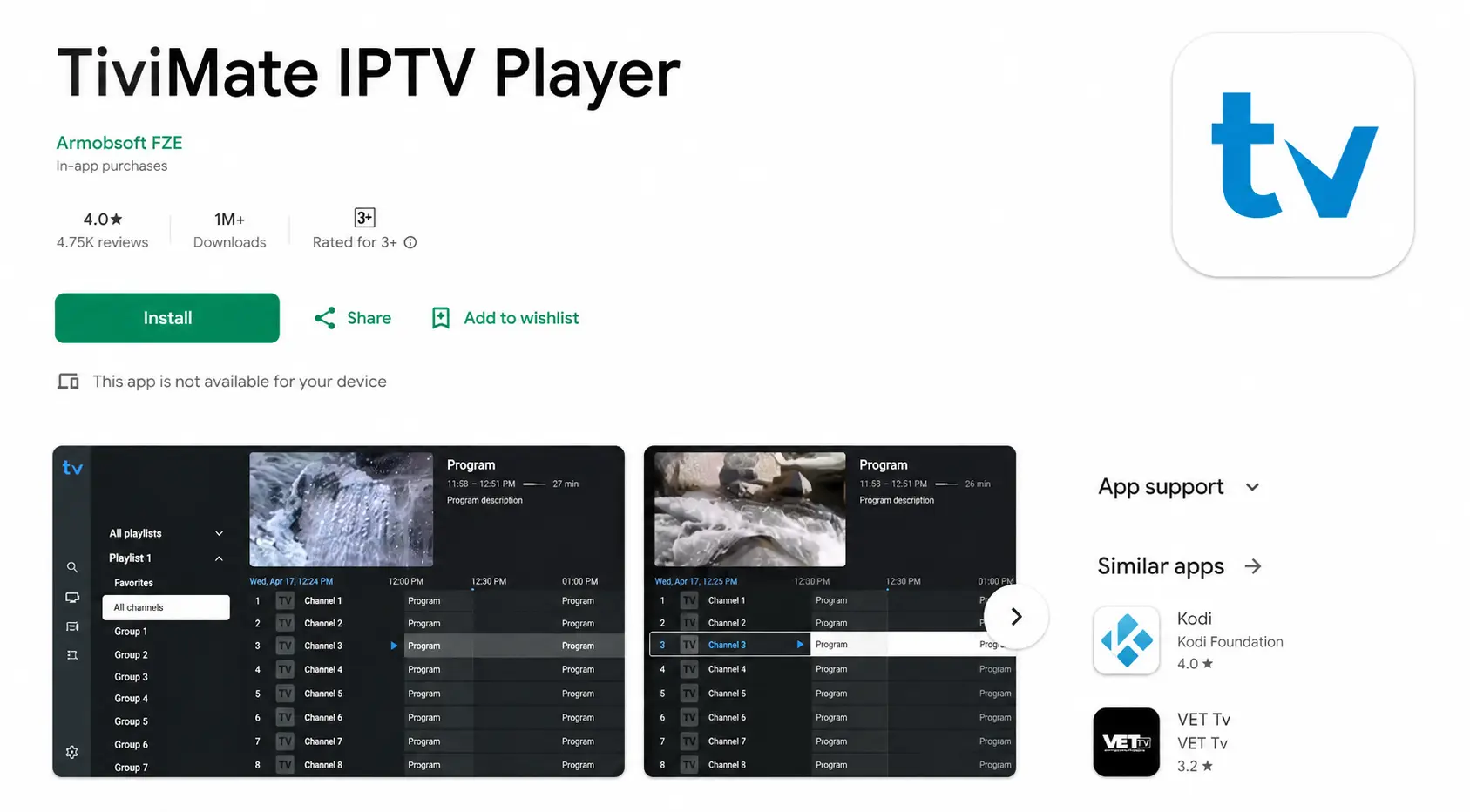
Install TiviMate
On Android TV, Google TV and NVIDIA Shield, install TiviMate IPTV Player from Google Play. On a Firestick it is installed with the Downloader app — ask us on WhatsApp for the current installer link.
Add a playlist with Xtream Codes
Open TiviMate and select Add playlist, then Xtream Codes. Enter the server address (with http:// and the port), your username and password, and select Next.
Name the playlist and finish
TiviMate shows how many channels, movies and series it found. Name the playlist “TrendyScreen” and select Done. The TV guide loads automatically from the Xtream login.
Hide the groups you do not watch
Go to Settings > Playlists > TrendyScreen > Manage groups and untick the countries you never watch. Your guide becomes much faster and easier to read.
Free vs Premium
| Feature | Free | Premium |
|---|---|---|
| Live TV and TV guide | Yes | Yes |
| Number of playlists | One | Several |
| Catch-up | No | Yes |
| Recording | No | Yes (to device or USB) |
| Favourites & custom groups | Limited | Full |
| Movies & series (VOD) | Limited | Yes |
| Guide customisation | Basic | Full |
Premium is bought through the TiviMate Companion app on an Android phone and covers several devices. Prices are set by the developer and can change; check them in the Companion app.
Best TiviMate settings for TrendyScreen
| Setting | Where | Recommendation |
|---|---|---|
| EPG update | Settings > EPG | Update on app start; keep 3–7 days of guide |
| Buffer size | Settings > Playback | Medium or Large for live sport |
| Auto frame rate | Settings > Playback | On, if your TV supports it (smoother sport) |
| Groups | Settings > Playlists > Manage groups | Hide countries you never watch |
| Start-up | Settings > General | Open last channel on start |
Which devices run TiviMate best
TiviMate is at its best on NVIDIA Shield, Google TV devices and the Fire TV Stick 4K Max. It runs on most Android TV boxes too. It does not exist for iPhone, Apple TV, Samsung or LG — see the best IPTV apps for alternatives on those devices.
TiviMate questions
Is TiviMate free?
The free version plays live TV from one playlist with the TV guide. TiviMate Premium is a paid upgrade (yearly or one-time) that unlocks several playlists, catch-up, recording, favourites management, a customisable guide and more.
How do I activate TiviMate Premium?
Install the TiviMate Companion app on an Android phone, buy Premium there, and sign in to the same account in TiviMate on your TV (Settings > Premium > Sign in). One Premium account covers several devices.
Does TiviMate work on Firestick?
Yes, very well on a Fire TV Stick 4K or 4K Max. It is not in the Amazon Appstore, so it is installed with Downloader. See Downloader codes.
Is there TiviMate for iPhone or Samsung?
No. TiviMate only runs on Android-based devices (Android TV, Google TV, Fire TV, Android boxes). On Apple devices use IPTVX; on Samsung or LG use a Smart TV app.
Why does TiviMate show no TV guide?
Check Settings > EPG: the source should be the playlist’s own EPG, and “Update EPG on app start” should be on. Then update the EPG manually. More in EPG explained.