
On this page
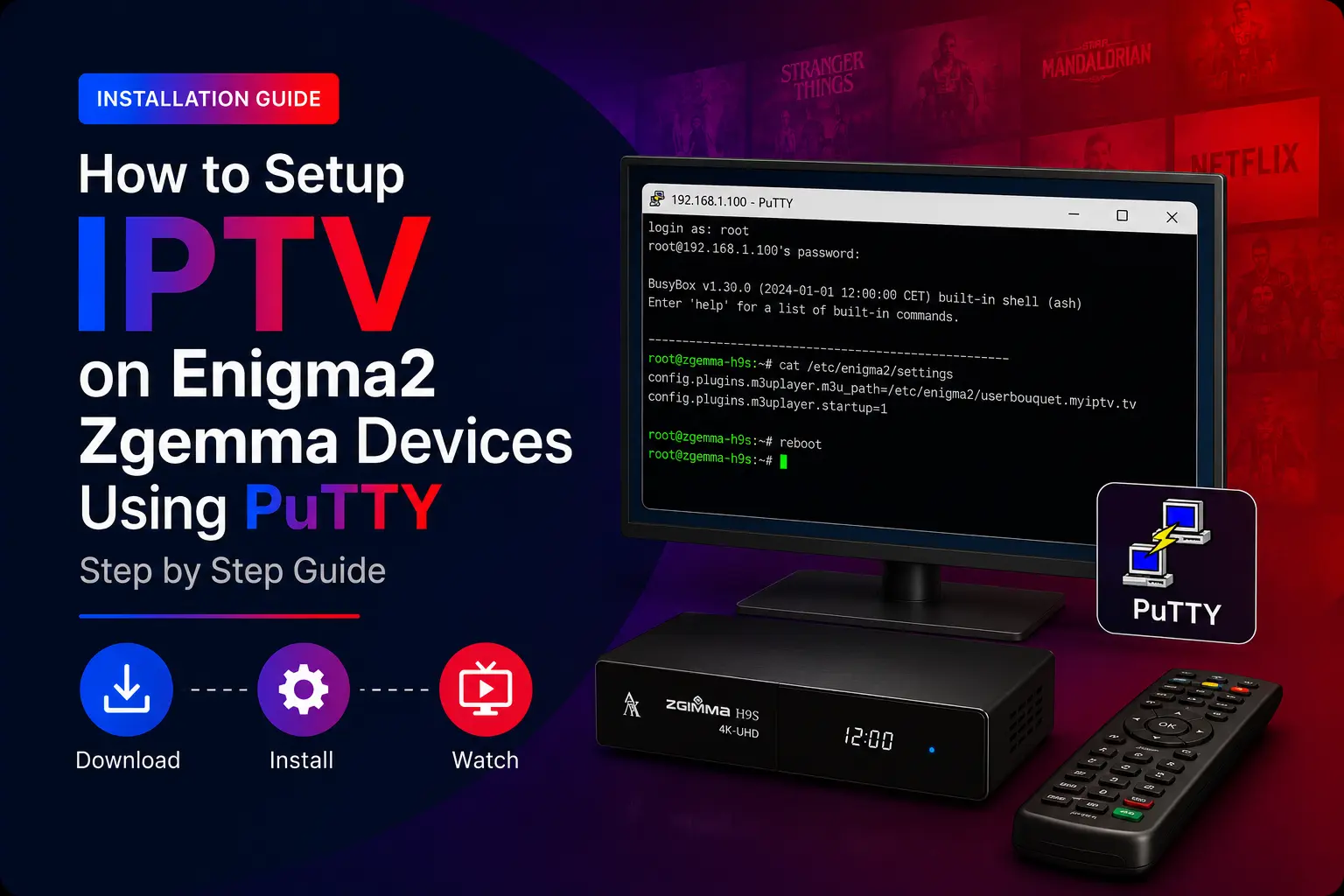
Quick answer: find your receiver’s IP address in Menu > Setup > Network, connect to it from a PC with PuTTY (Telnet or SSH, user root), paste the install command TrendyScreen sends you, then type reboot. Your IPTV bouquets appear after the restart.
What you need
- An Enigma2 receiver (Zgemma, VU+, Dreambox, Octagon…) on your home network.
- A Windows PC on the same network, with PuTTY.
- Your TrendyScreen install command — ask us on WhatsApp and mention “Enigma2”.
How to install IPTV on Enigma2
Install PuTTY on your computer
Download PuTTY, a free terminal program, from its official website and install it on a Windows PC on the same network as your receiver.
Find your receiver’s IP address
On the Enigma2 box, open Menu > Setup > Network (called Network Setup on some images) and write down the IP address, for example
192.168.1.200.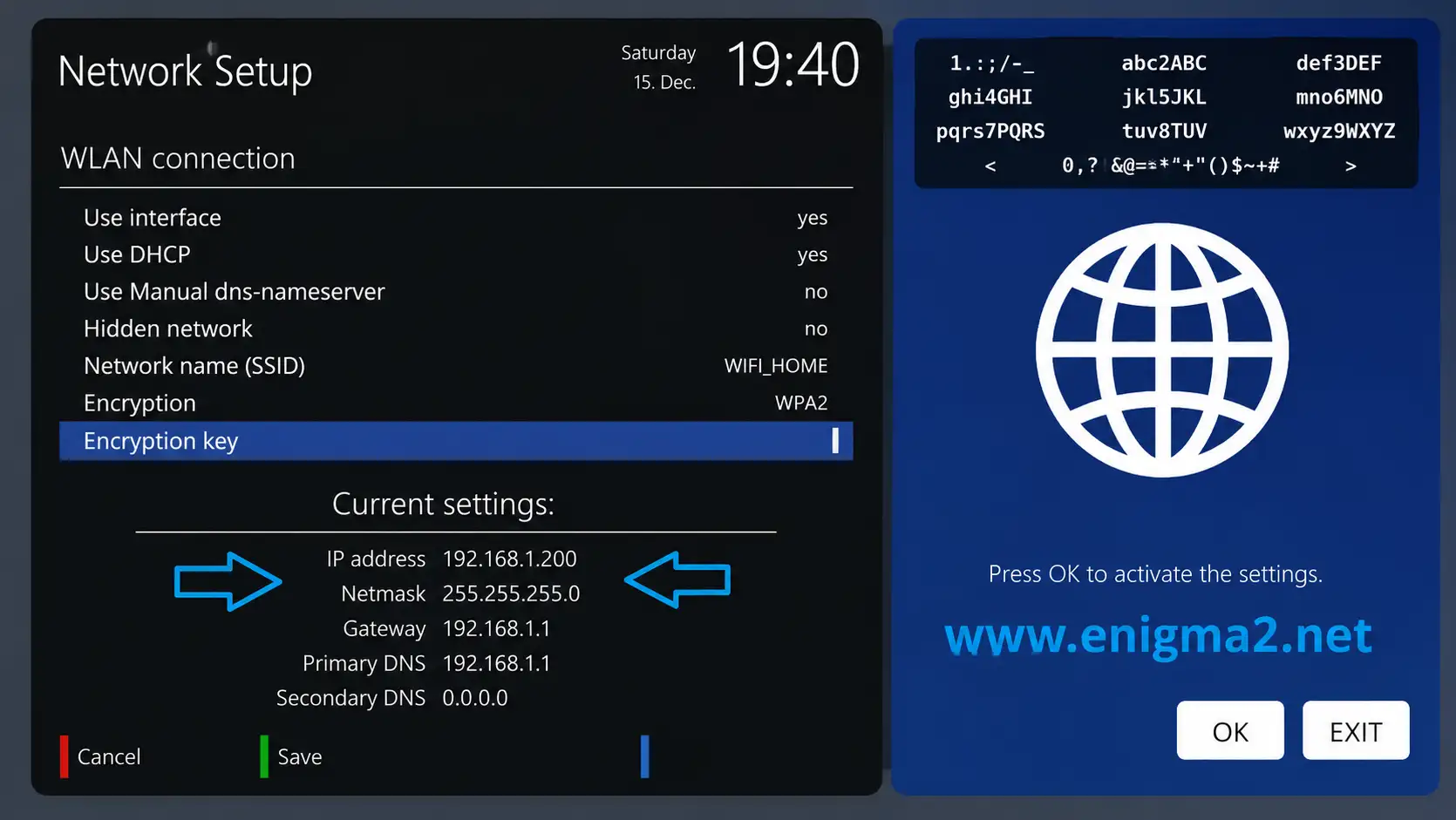
Connect with PuTTY
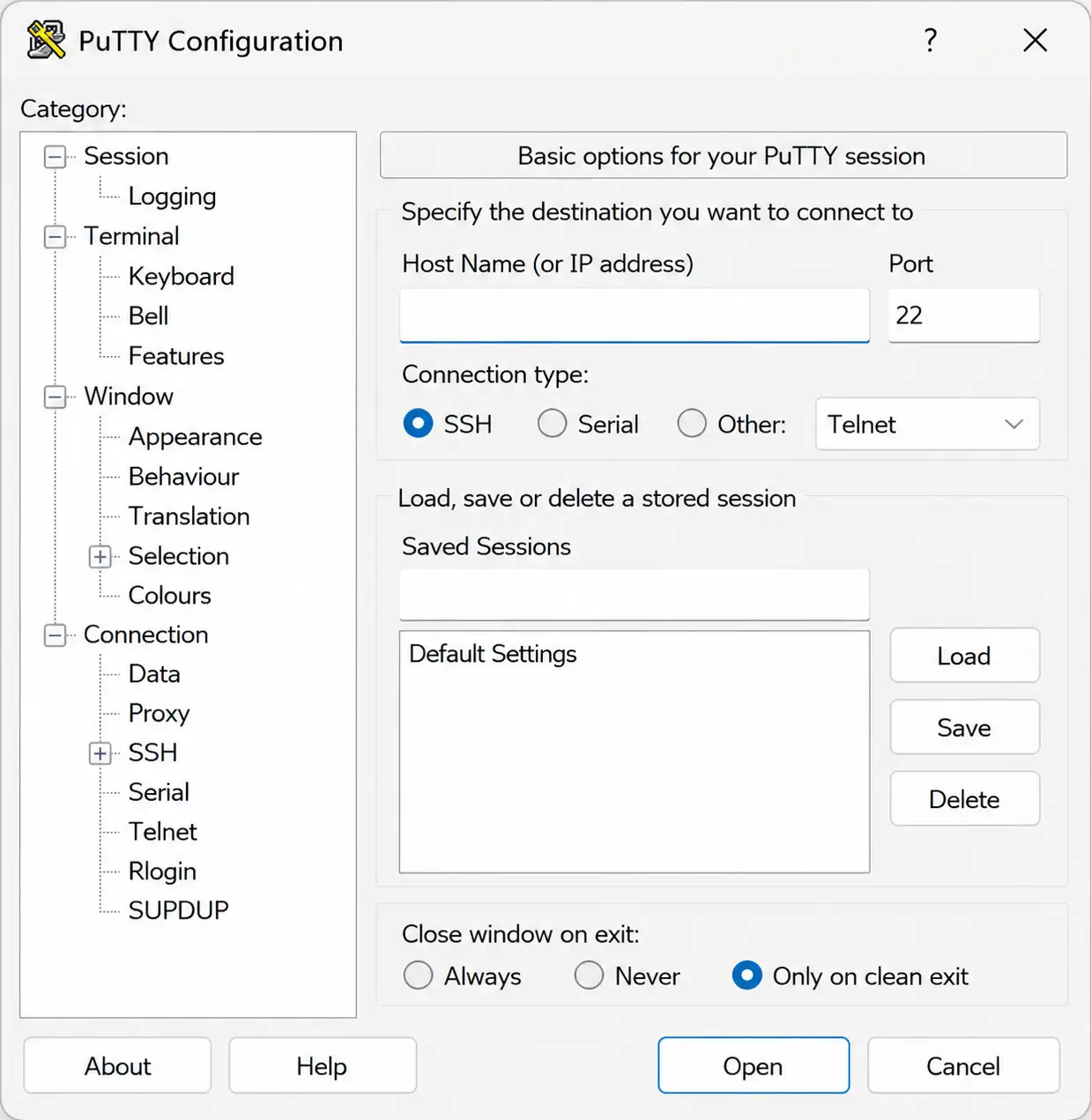
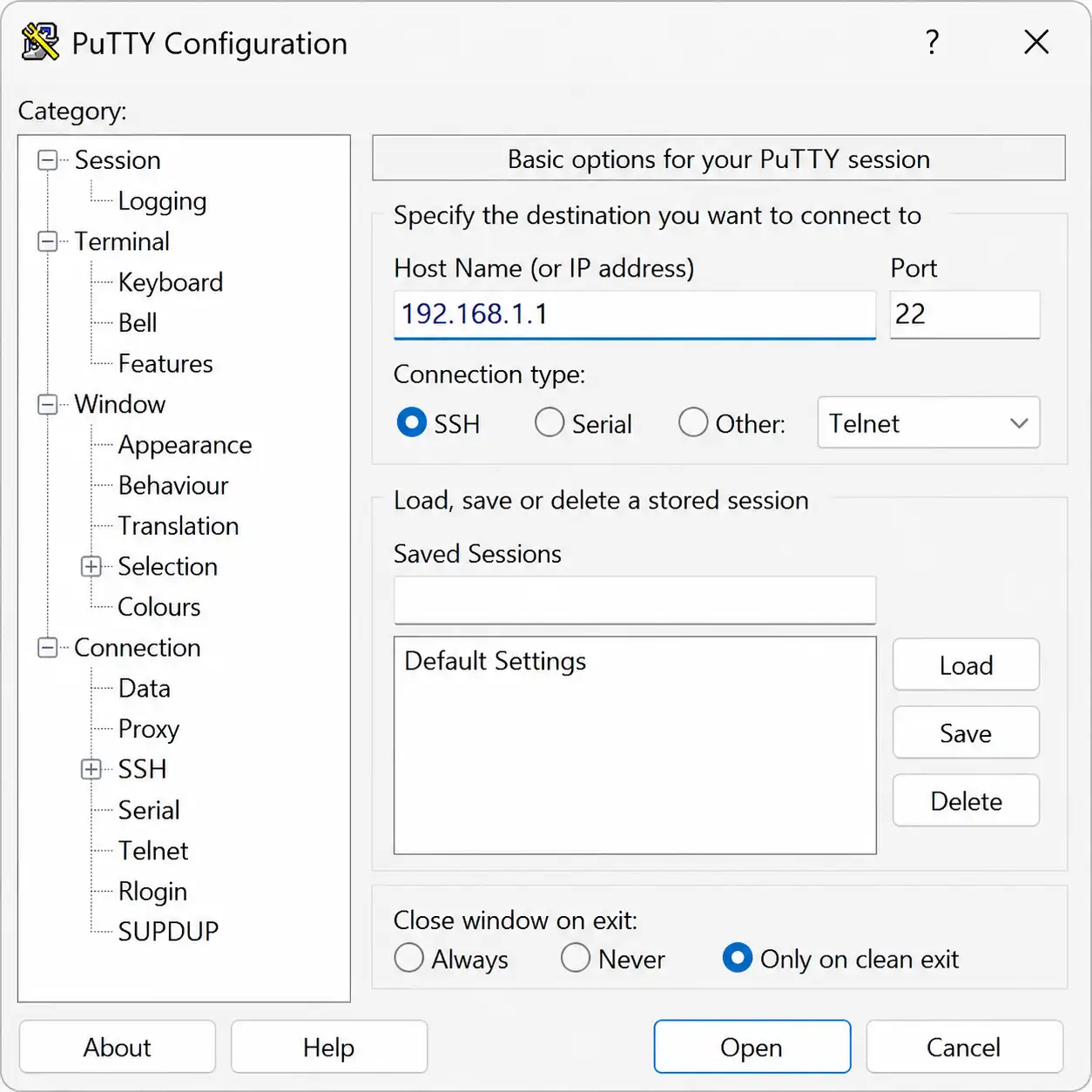
Open PuTTY, type the receiver’s IP in Host Name, choose Telnet (or SSH on newer images) and click Open.
Log in as root
In the terminal, press Enter, type
rootas the username and your receiver’s root password (often empty on a fresh image).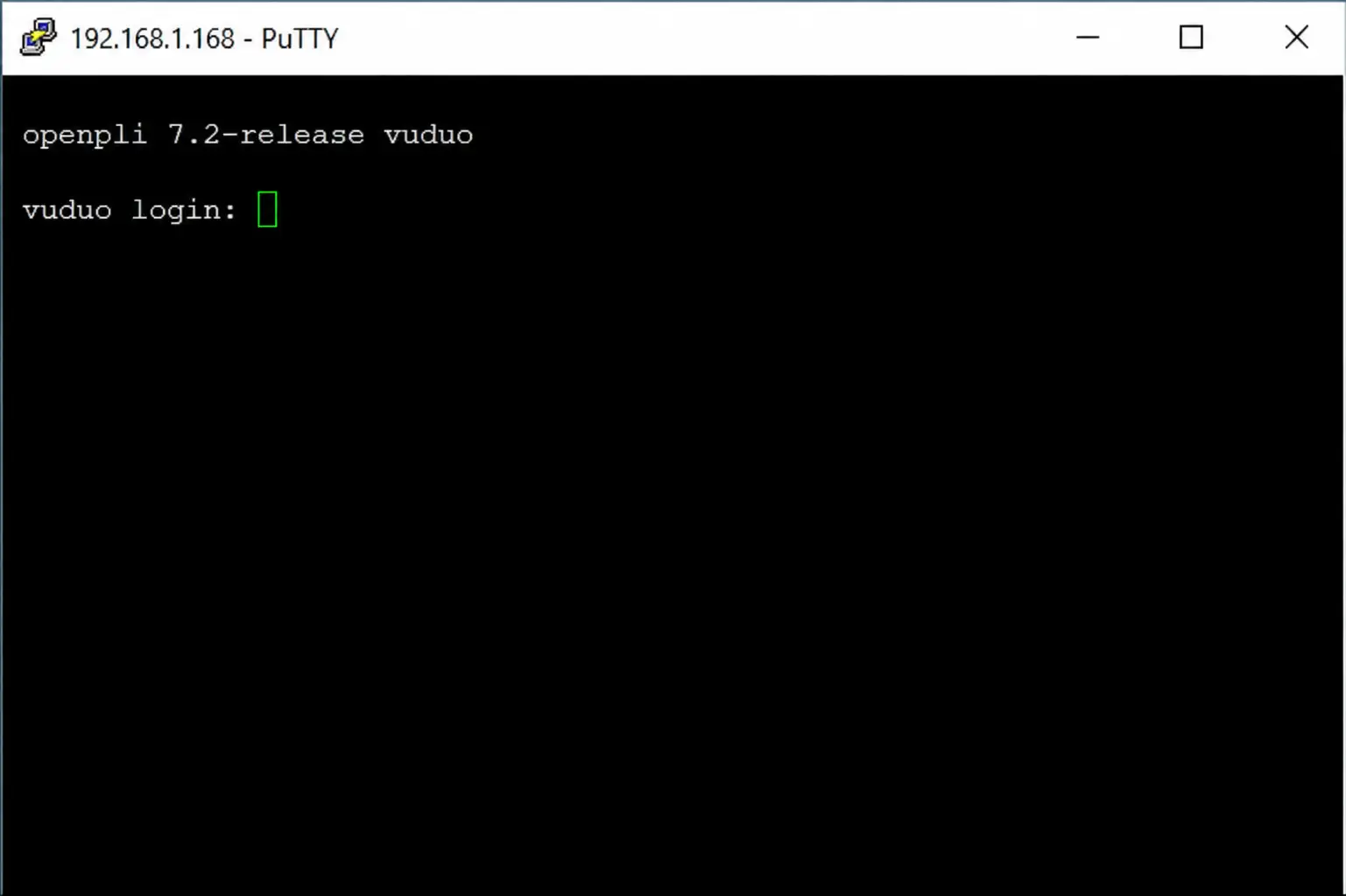
Paste the TrendyScreen install command
We send you a one-line command with your details. Paste it with a right-click and press Enter. It looks like this:
Example only — use the command we send youwget -O /etc/enigma2/iptv.sh "http://SERVER:PORT/get.php?username=USER&password=PASS&type=enigma22_script&output=ts" && chmod 777 /etc/enigma2/iptv.sh && /etc/enigma2/iptv.shReboot the receiver
Type
rebootand press Enter. When the box restarts, the TrendyScreen bouquets appear in your channel list.reboot
Replace nothing by hand unless we ask you to: the command we send already contains your server, username and password. One missing character stops it from working.
Add a TV guide (EPG) with E-Channelizer
IPTV bouquets on Enigma2 show the guide best when each channel is mapped to its satellite equivalent. E-Channelizer does this on Windows:
- Download E-Channelizer from its official page and install it.
- Connect it to your receiver (it uses the same IP address).
- Drag the matching satellite channel onto each IPTV channel while holding Ctrl — this copies the EPG reference.
- Write the changes back to the receiver. The GUI restarts and the guide appears.
Final tips
- The receiver and the PC must be on the same network.
- Use the IP address shown on the receiver — it can change after a router restart.
- If the channels do not appear, reboot once more before anything else.
- Buffering on satellite boxes is usually Wi-Fi: use a cable if you can. See buffering fixes.
Enigma2 questions
Which receivers does this work on?
Any Enigma2 receiver: Zgemma, VU+, Dreambox, Octagon, Formuler F-series satellite boxes, Openbox and Dreamlink models running OpenATV, OpenPLi or a similar image.
Telnet or SSH?
Older images accept Telnet; newer ones often only allow SSH. Choose SSH in PuTTY if Telnet refuses the connection — the rest of the steps are the same.
The bouquets did not appear after reboot.
Check the command was pasted in full, with no line break, and that your username and password in it are correct. Run it again, then reboot. If it still fails, send us a photo of the PuTTY window on WhatsApp.
Can I use an IPTV plugin instead?
Yes — plugins such as XStreamity or Jedi Maker Xtream let you add the TrendyScreen Xtream Codes login from the receiver’s menu. The script method above is quicker and needs nothing extra.