
Troubleshooting
Why Is IPTV Not Working Today?
If your IPTV suddenly stopped working, this full checklist will help you find the cause quickly, whether it's your internet, your app, or your Trendyscreen IPTV account.

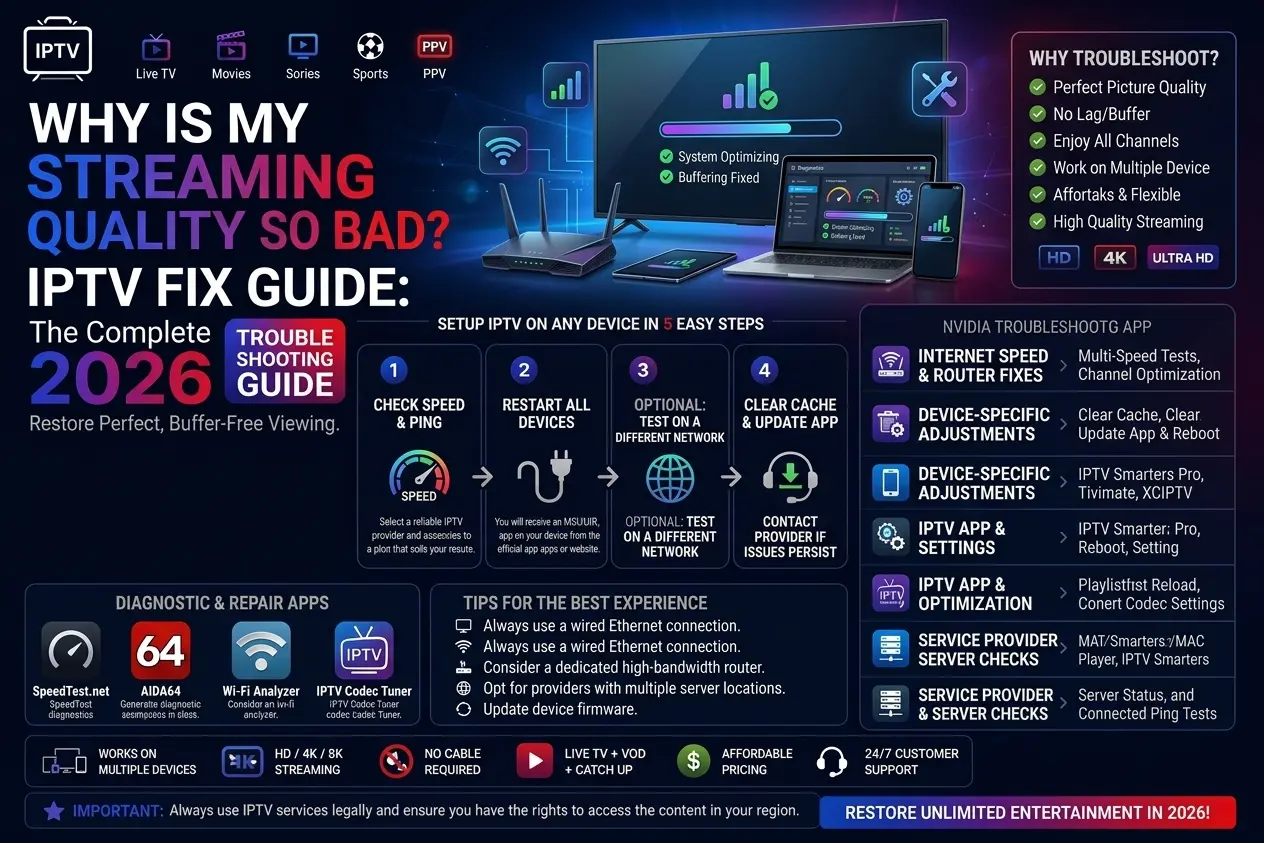
When IPTV suddenly stops working, it's usually one of a handful of common issues. Work through this checklist from top to bottom — most people find the cause within the first few steps.
Step 1: Check Your Internet Connection
1
Try loading a website or another streaming app to confirm your internet is working.
2
Restart your router and modem, then wait 30 seconds before reconnecting.
3
Run a speed test to confirm you have enough bandwidth for streaming.
Step 2: Restart Your Streaming Device and App
1
Fully close your IPTV app (not just minimize it).
2
Restart your Firestick, Smart TV, Android box or other device.
3
Reopen the app and try loading a channel again.
Step 3: Check Your Trendyscreen Subscription Status
If your subscription has expired, channels will stop loading even though everything else looks normal.
- Check your original order confirmation for your expiry date.
- Contact Trendyscreen support to confirm your account is active.
- Renew immediately if your plan has expired.
Step 4: Turn Off Any VPN
Some VPN servers can block or slow down the connection to IPTV servers.
1
Disable your VPN completely.
2
Reopen your IPTV app and test again.
3
If it works without a VPN, try a different server location next time.
Step 5: Check for a Login or Authorization Error
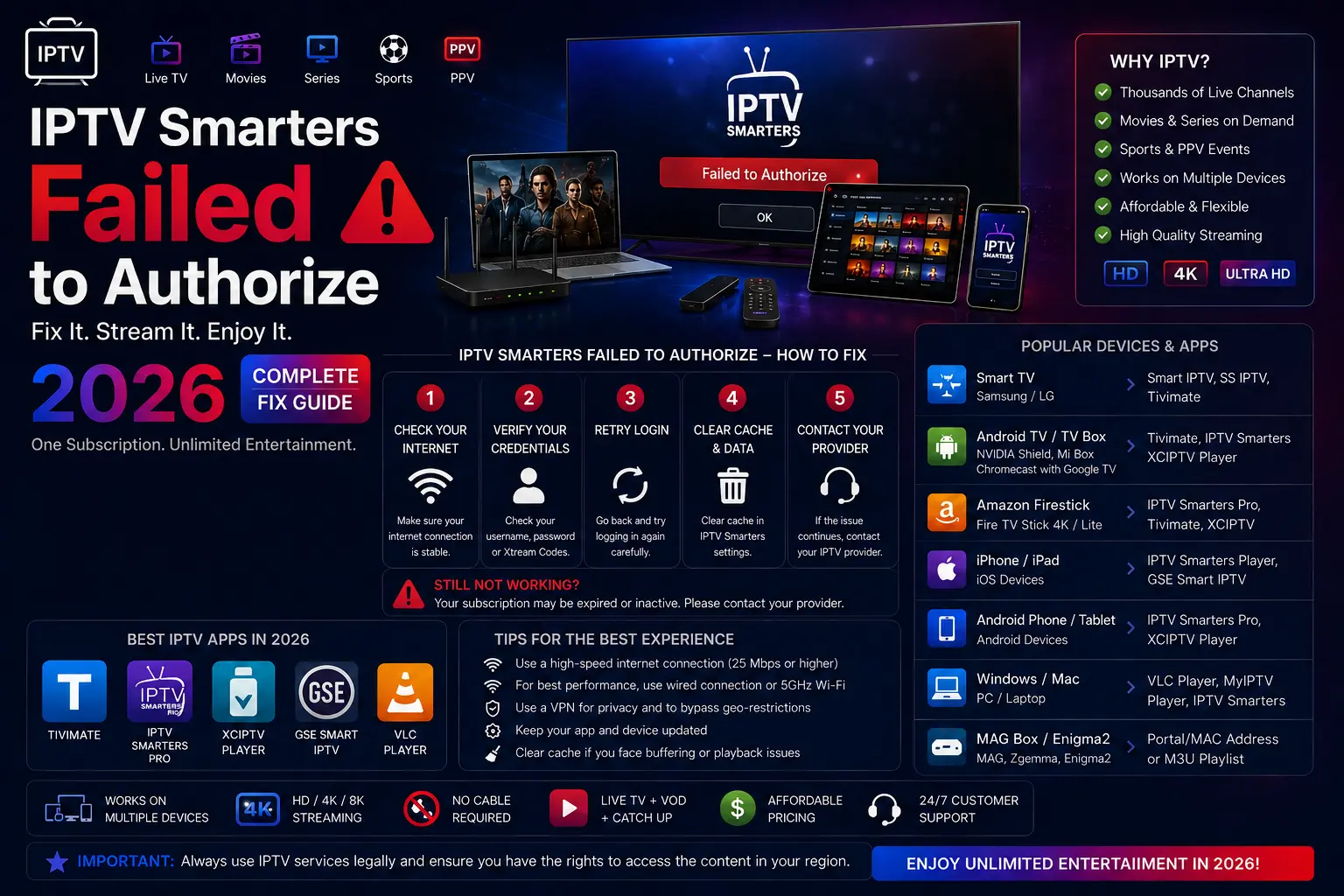
If you're seeing a specific error message like "Failed to Authorize" or "No Data Found," these have their own dedicated fixes:
- Failed to Authorize: usually a login detail, expired subscription, or multiple-device issue.
- No Data Found: usually a connection, cache, or server-loading issue.
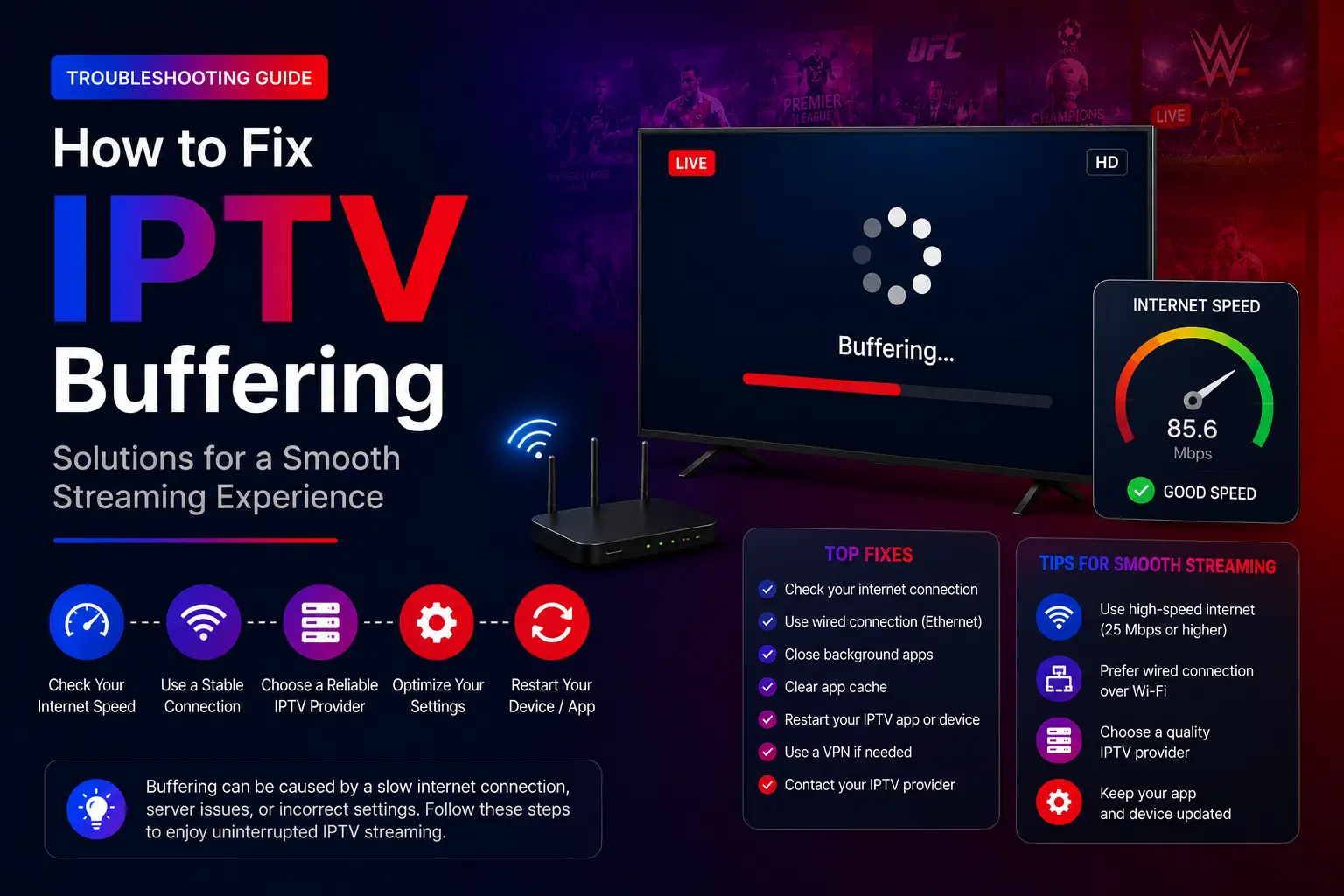
- Poor quality or pixelation: usually related to internet speed or Wi-Fi signal.
Step 6: Clear App Cache or Reinstall
1
Go to your device's app settings and select your IPTV app.
2
Clear cache and data.
3
If the issue continues, uninstall and reinstall the app.
4
Log back in with your Trendyscreen details.
Step 7: Rule Out a Temporary Server Issue
Occasionally, the issue isn't on your end at all. Servers can experience brief maintenance windows or high traffic during major live events.
If you've gone through every step above and it's still not working, wait 15-20 minutes and try again, or contact Trendyscreen support directly to check for a known issue.
Full Checklist Summary
- Confirm your internet is working normally.
- Restart your device and IPTV app.
- Check that your Trendyscreen subscription is active.
- Turn off any VPN.
- Identify any specific error message and follow its dedicated fix.
- Clear cache or reinstall the app.
- Contact Trendyscreen support if the issue continues.
Related Guides
Still Having Issues?
Contact Trendyscreen support and we will check your account, confirm server status and help you get back to streaming quickly.
Contact Support →